 VN
VN 


Guide to Linking Cloud Services for Sending Attachments on OneMail User Page
A guide on linking cloud services to send attachments directly from the OneMail user page.
In today's digital age, utilizing cloud services not only ensures secure data storage but also provides convenience in sharing files via email. This article from MIMA will guide you through the process of linking your cloud service to send attachments directly from your OneMail user page. Let's follow along.
Steps to Link Cloud Services for Sending Attachments
Step 1: First, you need to log in to your user account on the OneMail page.
To log in to your OneMail account, your administrator will provide you with an account and password to log in via a link with the format: webmail.yourdomain.com, for example: webmail.onemail.vn.
Step 2: After successfully logging in, compose your email on the OneMail page as usual. Enter the recipient's email address, subject, and the content you wish to send.
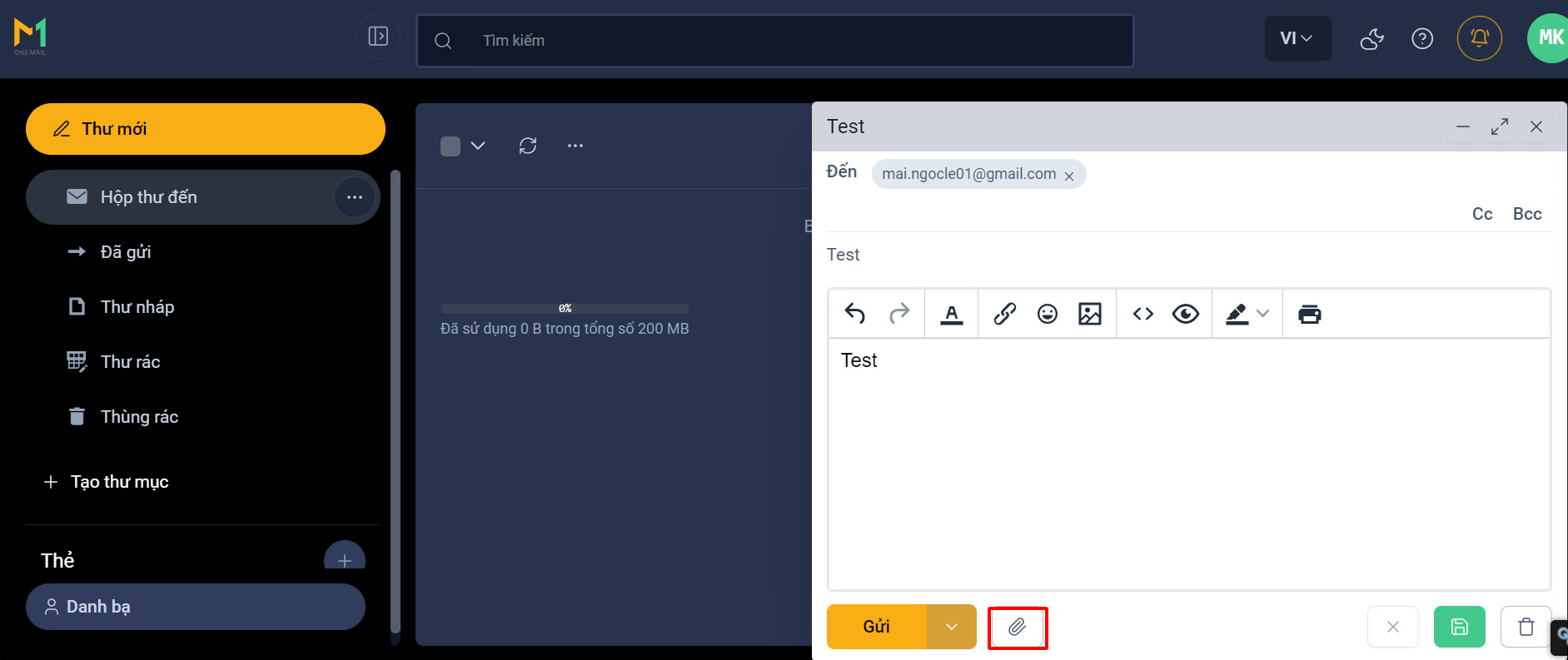
Email Composition Interface
Next, click on the attachment icon, and select the cloud service option. Click on the icon corresponding to the cloud service you wish to use. Currently, OneMail v2 supports integration with OneDrive and Dropbox.
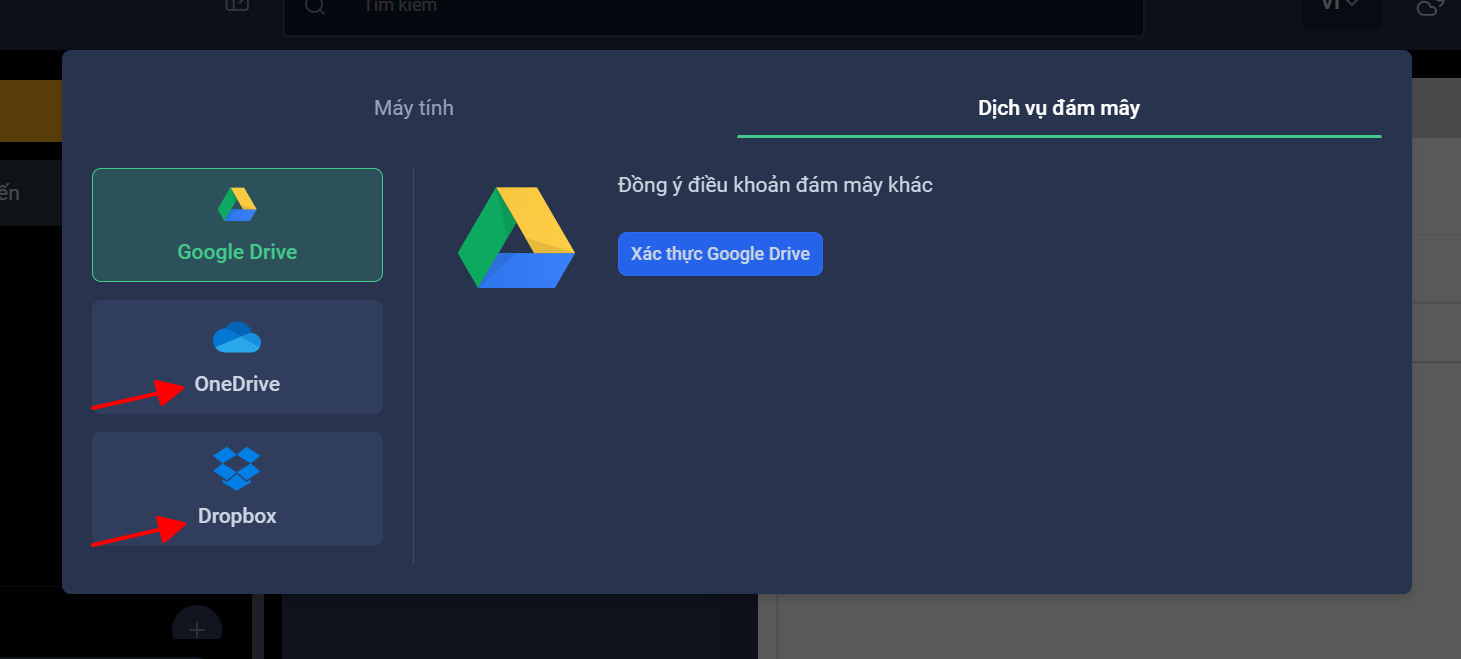
Cloud Service Interface
**If you choose to use OneDrive:** Select the 'Authenticate OneDrive' option and log in to connect OneMail with your Drive account. Once successfully connected, you will see files from your cloud service displayed. Select the file you want to attach and click the 'Insert Link into Email' button to add the link to your email content.
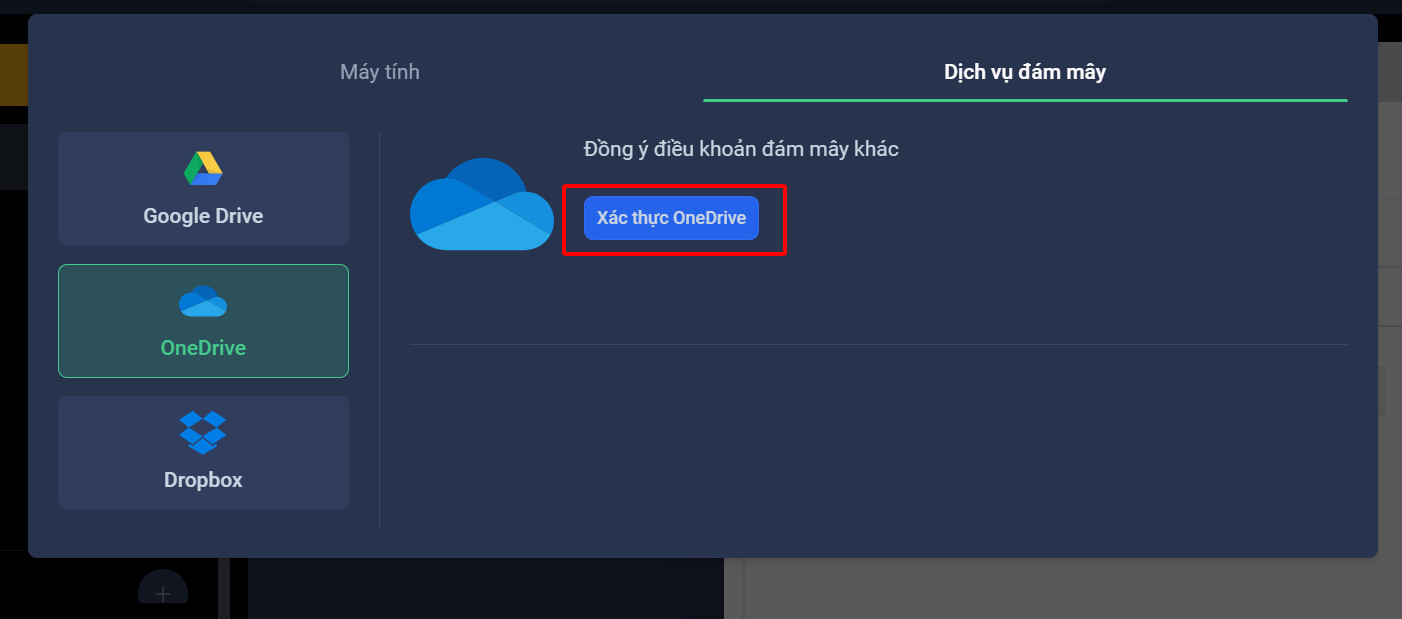
Select the feature as shown
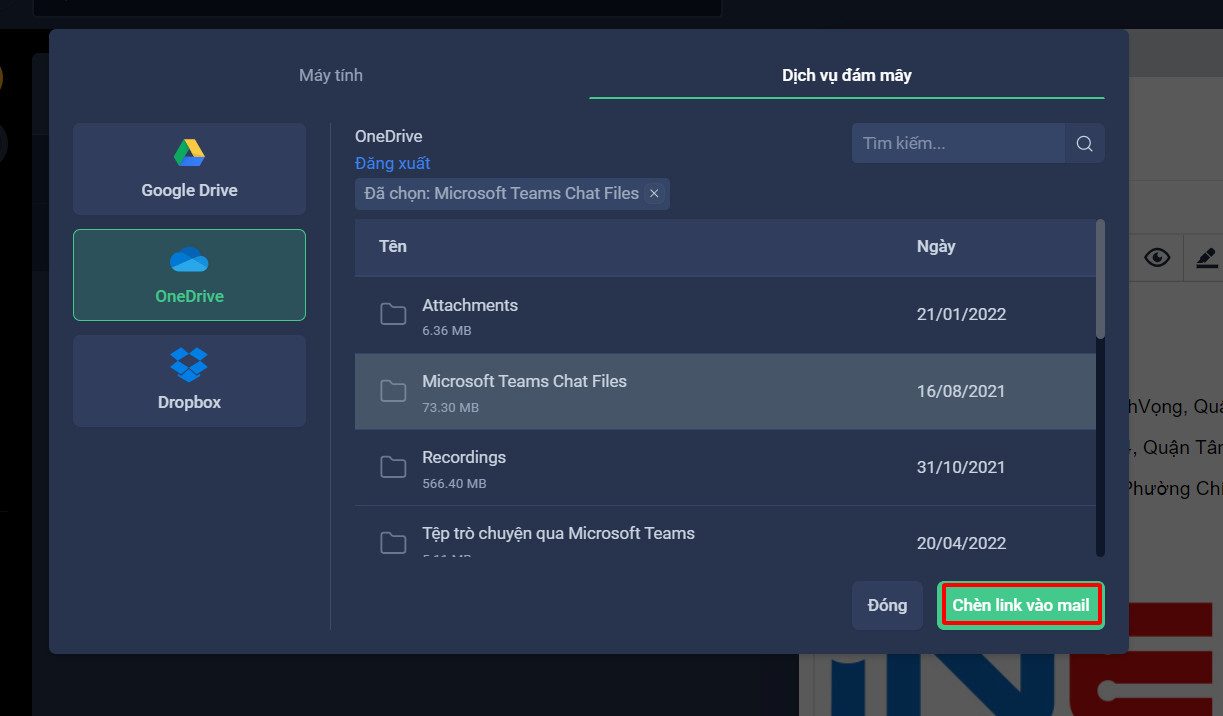
Select attachment file
**If you choose to use Dropbox:** The process is similar to OneDrive. Select 'Authenticate Dropbox,' then log in and choose the file from the displayed cloud service to attach to your email.
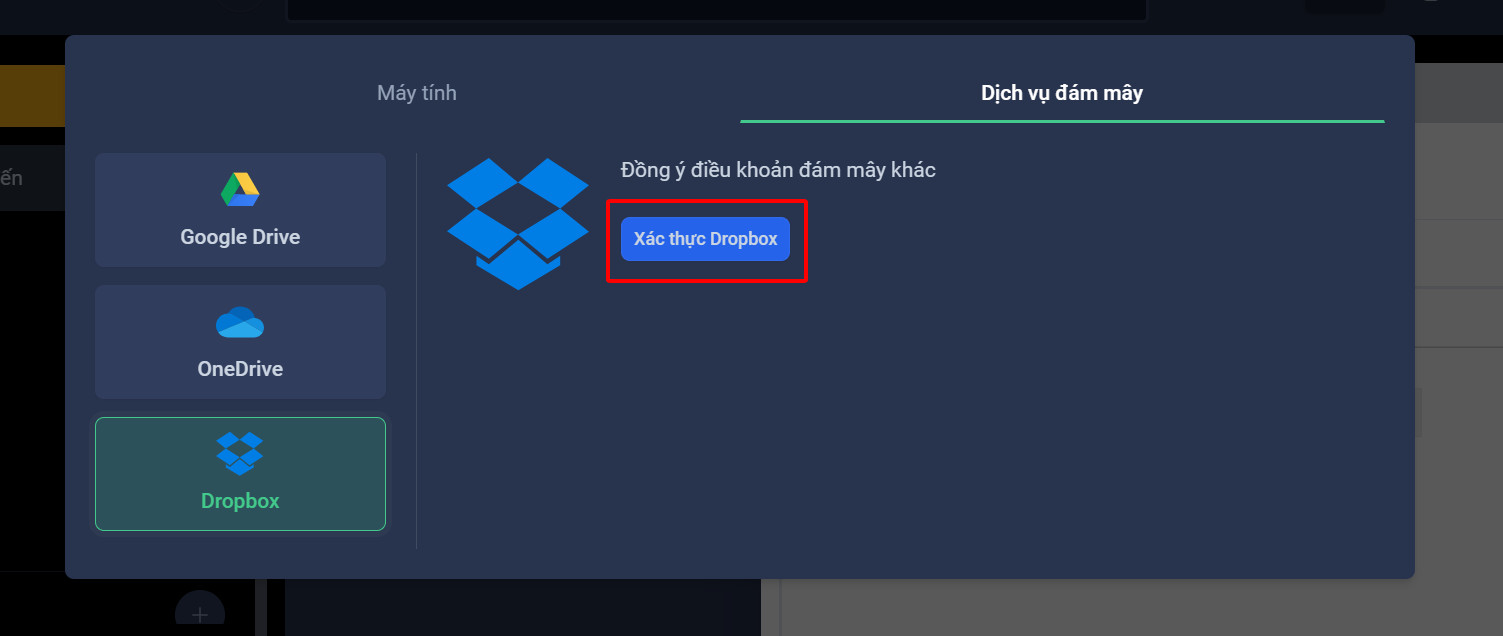
Select the feature as shown
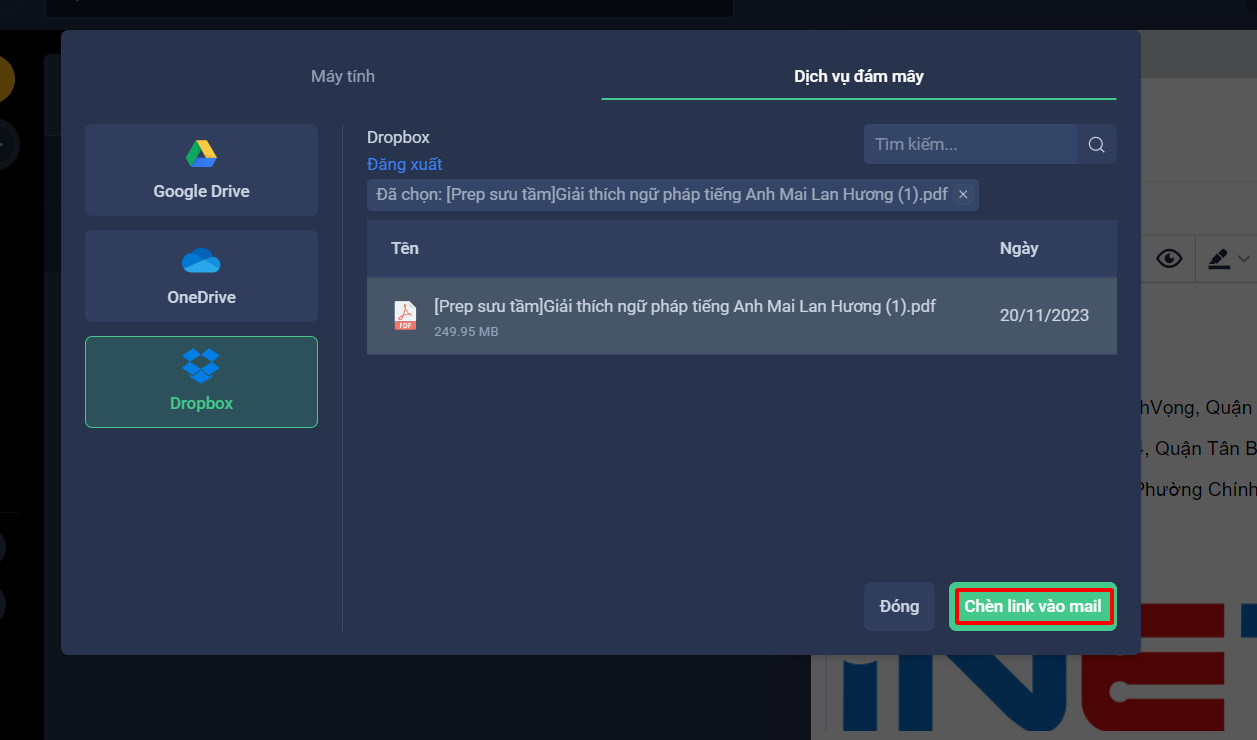
Select attachment file
Step 3: Review your email content to ensure the link has been added correctly. Then, click the 'Send' button to send the email with the attachment from your chosen cloud service.
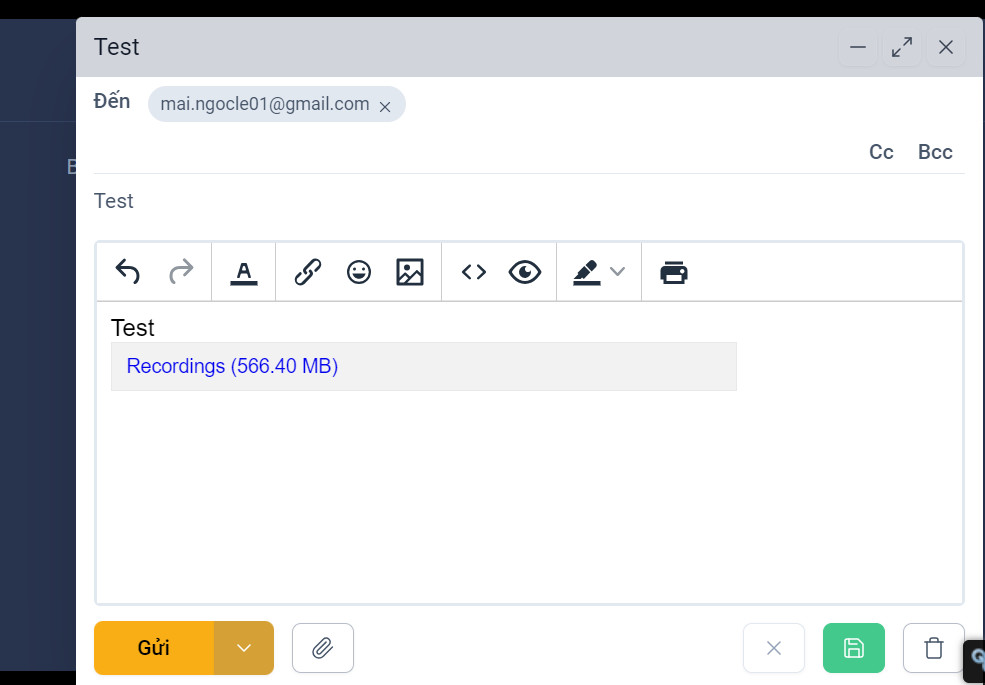
Send Email
This method makes sharing attachments on OneMail simpler and more convenient, saving you time and enhancing your email user experience. We wish you success in implementing this!