
 VN
VN 


Guide to Importing/Exporting All Email Account Data on OneMail

Link to access webmail admin, admin name, and link to access webmail client. To handle data import/export, we use the webmail admin link following these steps:
IMPORT DATA:
1. Log in to the service management page at iNET:
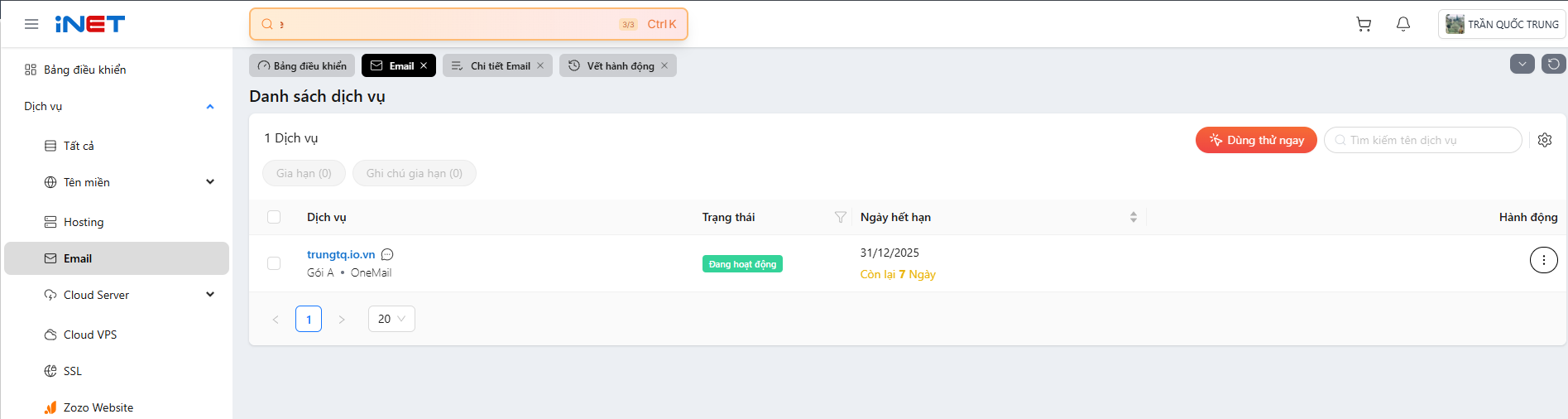
Click on the Email tab, then click on the email package you want to manage.
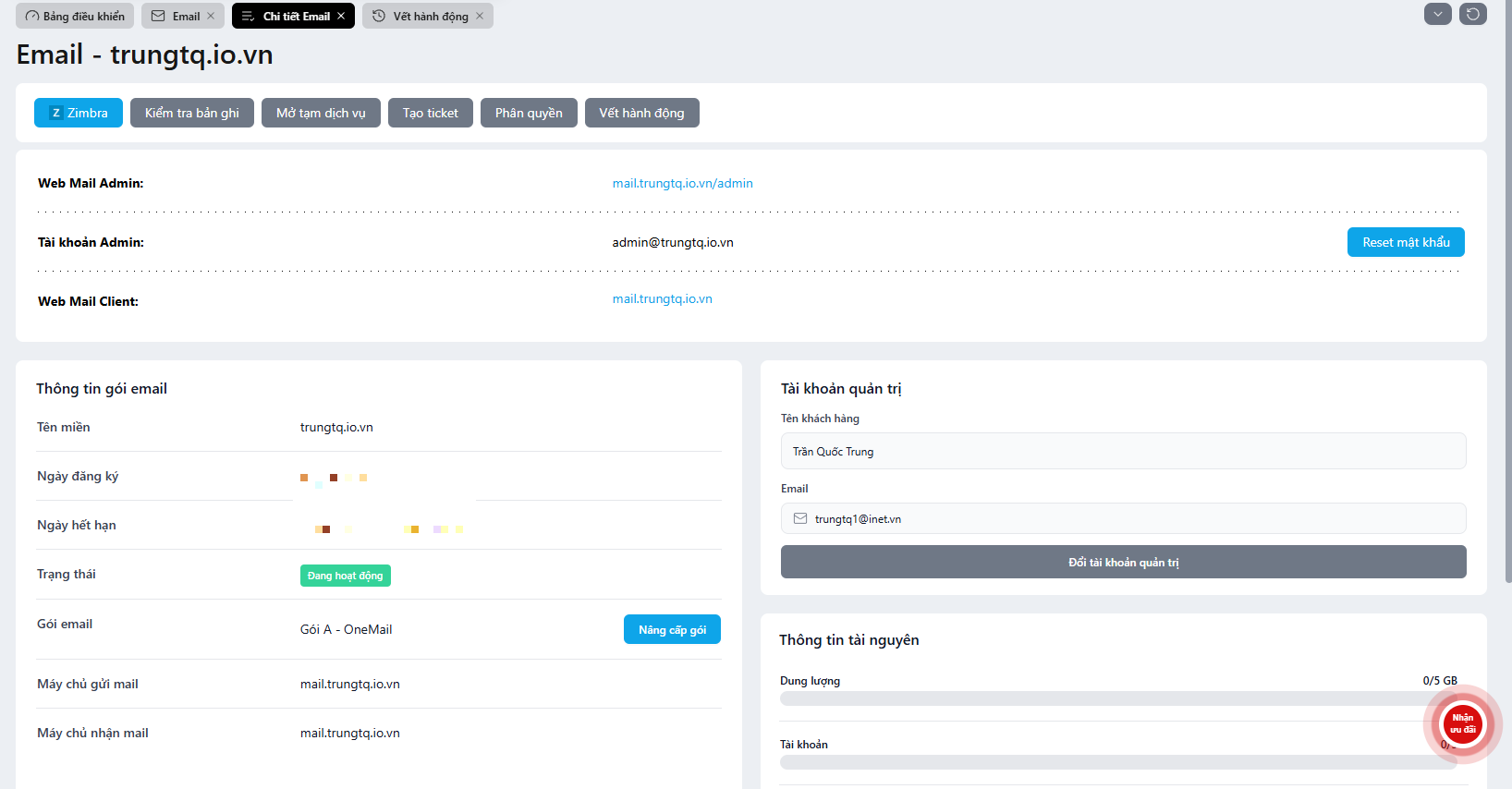
The email package will display full information including:
- Webmail admin access link, admin name, and webmail client access link. To handle data import/export, use the webmail admin link as follows:
- Reset Password -> Enter the admin account information and the newly reset password into the webmail admin link to log in.
2. Log in via the Web Mail Client link:
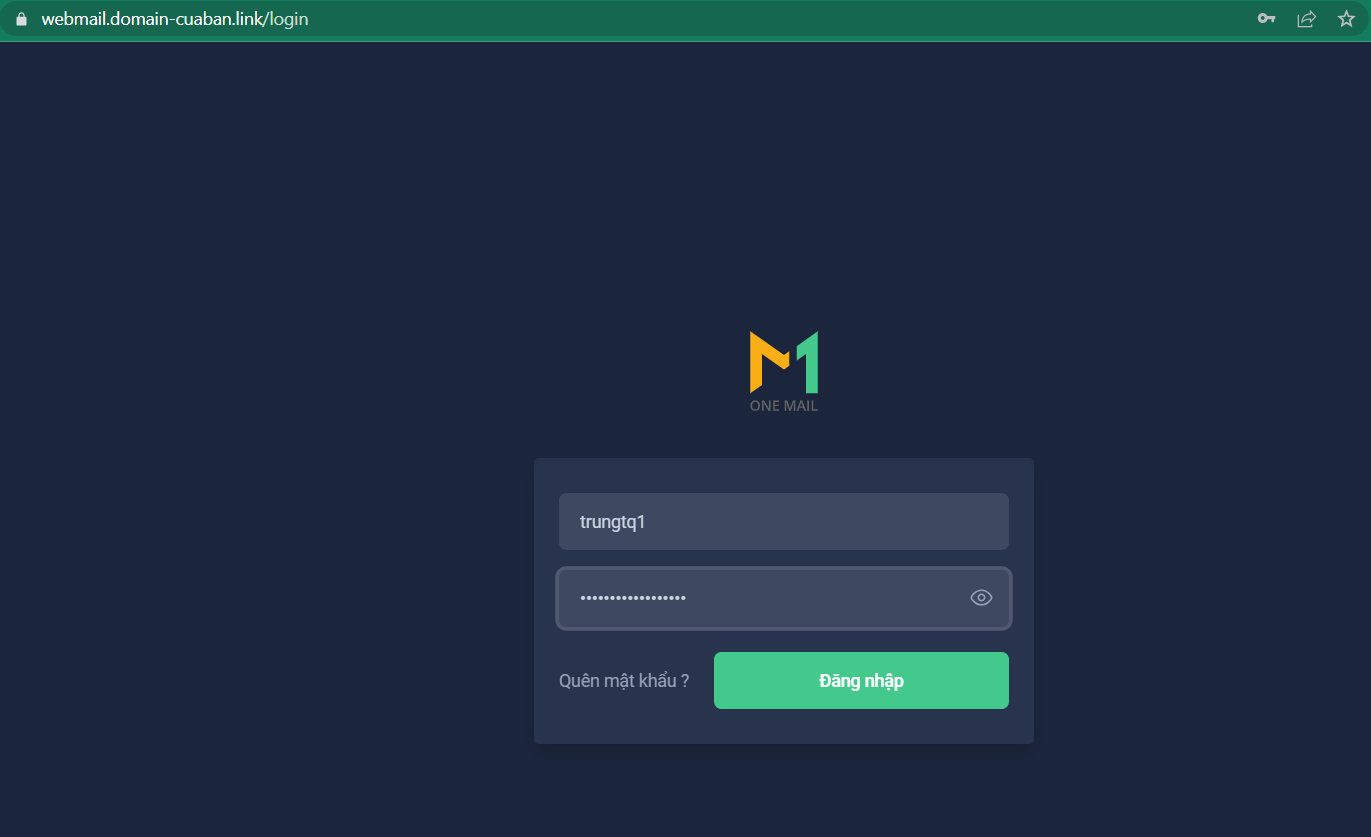
Proceed to enter the account information for the data to be Imported.
3. Select the settings button to proceed with Import/Export:
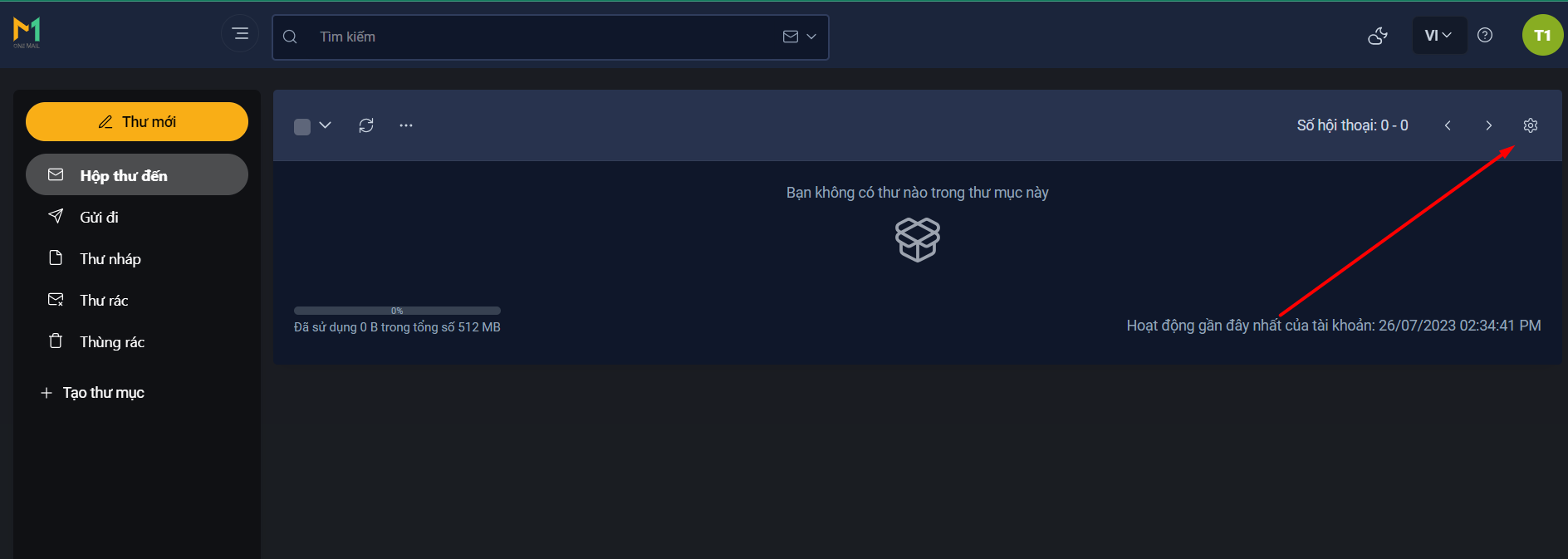
At the end of the settings list, you will find the Import/Export option:
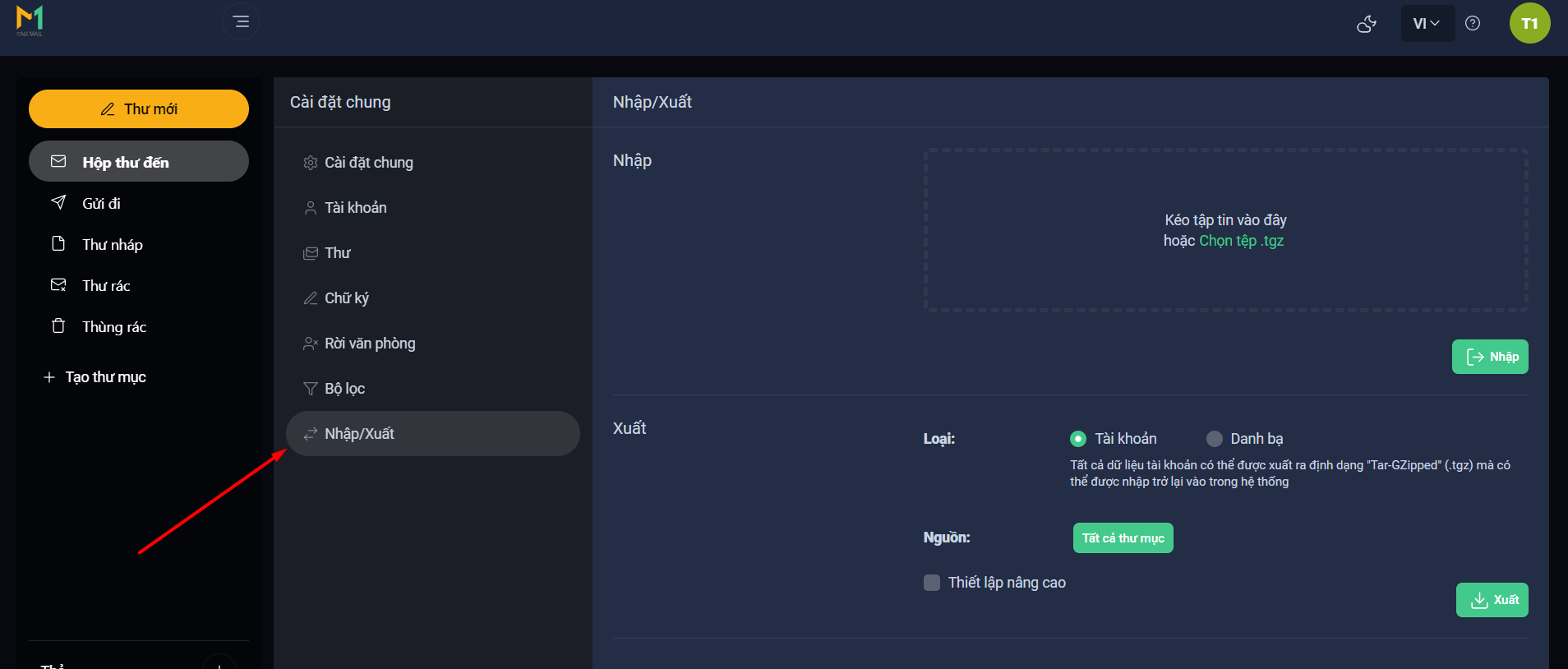
Drag and drop the file or select a file with the .tgz extension to proceed with the Import, then click Import.
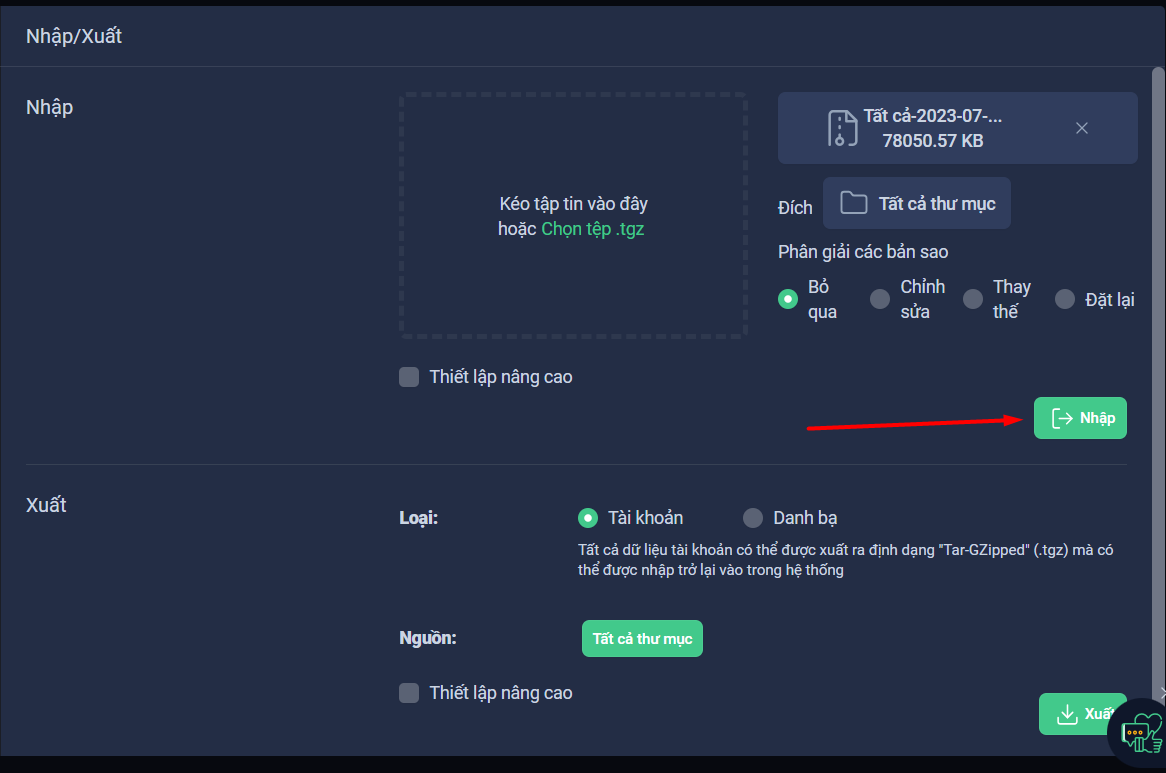
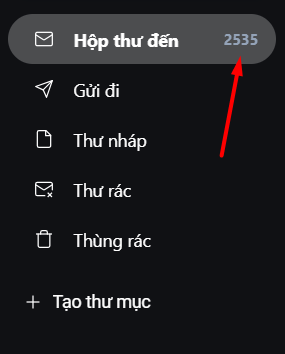
Data Import has been completed:
EXPORT DATA
Similar to importing data, you will perform the same actions for exporting data.
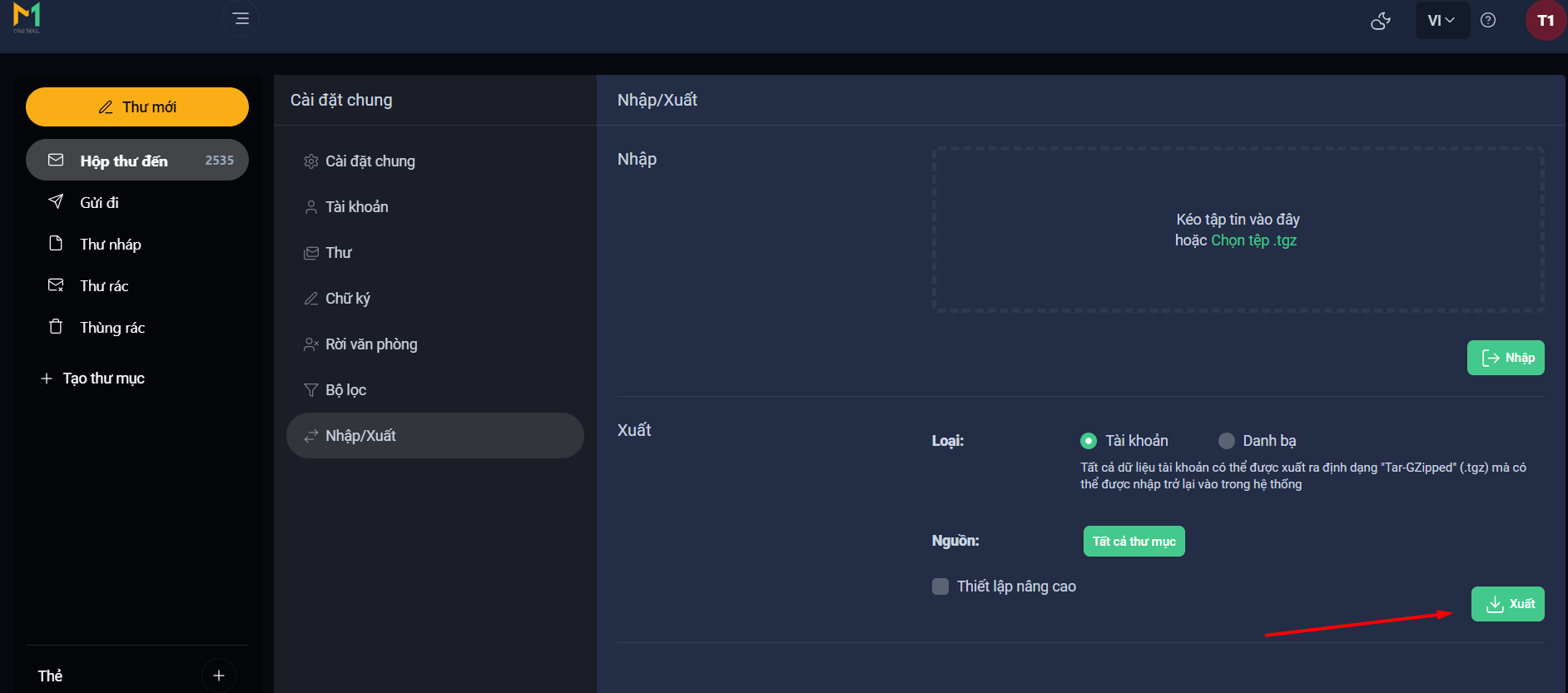
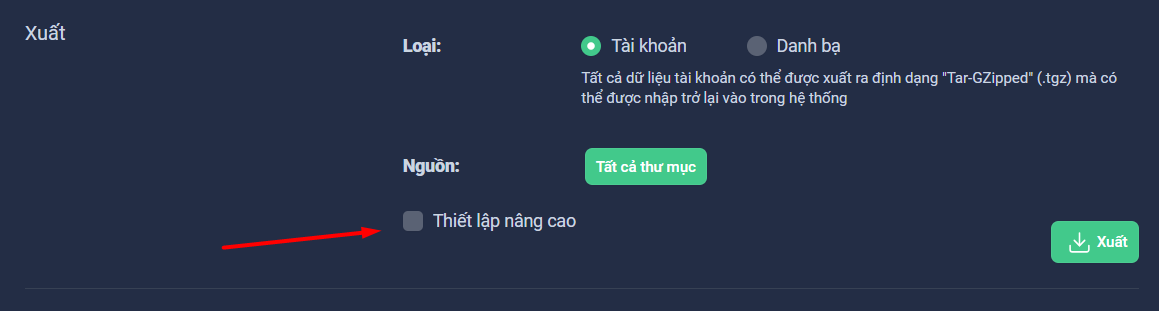
Click Export to proceed with exporting the data.
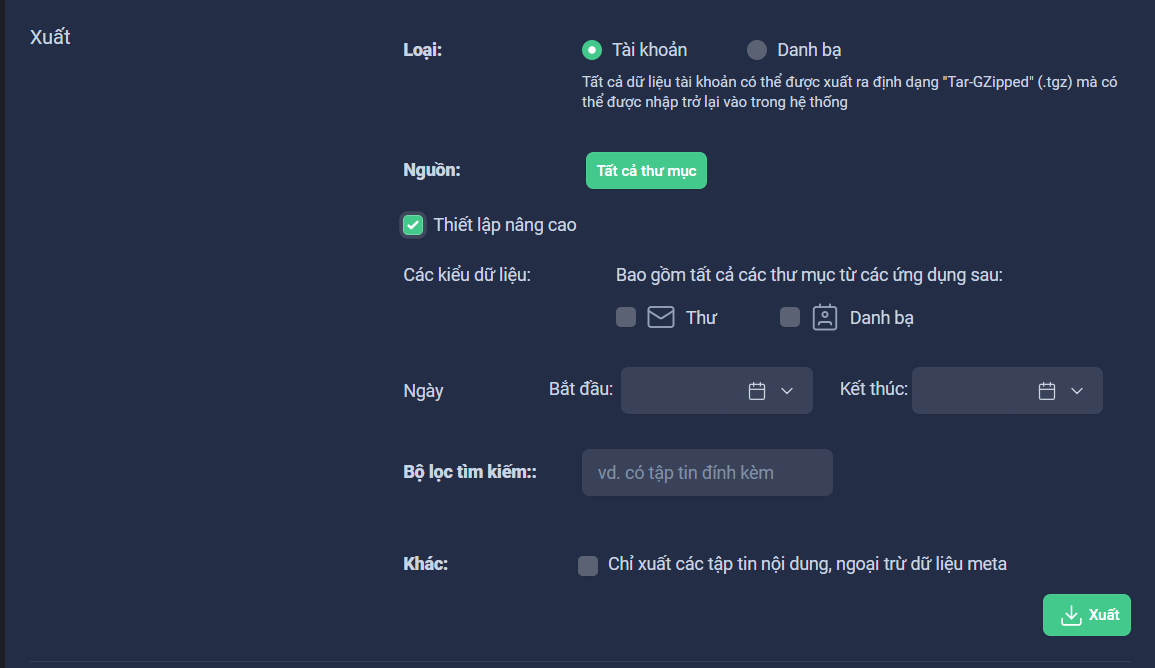
You can tick on Advanced Settings to export data as desired:
We hope you have a successful operation.