 VN
VN 


Guide to Using OneMail User Settings Features

OneMail is a modern and convenient email service with many accompanying features. To optimize your experience, here is a guide on how to use the settings features on the OneMail user page. Let's follow along for detailed usage instructions.
9 Useful and Cool OneMail Settings Features You Might Not Know
1. General Settings
***Change Password
The general settings feature allows users to change their password by selecting "Change Password." Enter your current password and then your new password. Remember to save it to ensure your account's security.
***Two-Step Verification
With the two-step verification feature, you can add an extra layer of security to your account in case your password is compromised. There are two methods for account verification: via email or Telegram.
***Set Up Recovery Email Address
To ensure you can regain access to your OneMail account if you cannot log in, add your recovery information.
It is recommended to choose an email address that:
You use frequently.
Is different from the address you use to log into your OneMail account.
***Time Zone
You can change time zone settings according to your device's location information.
***Search in OneMail
You can search for emails in your inbox using search phrases. Activate the spam, shared, and trash folder search features if you want to find emails in those specific folders.
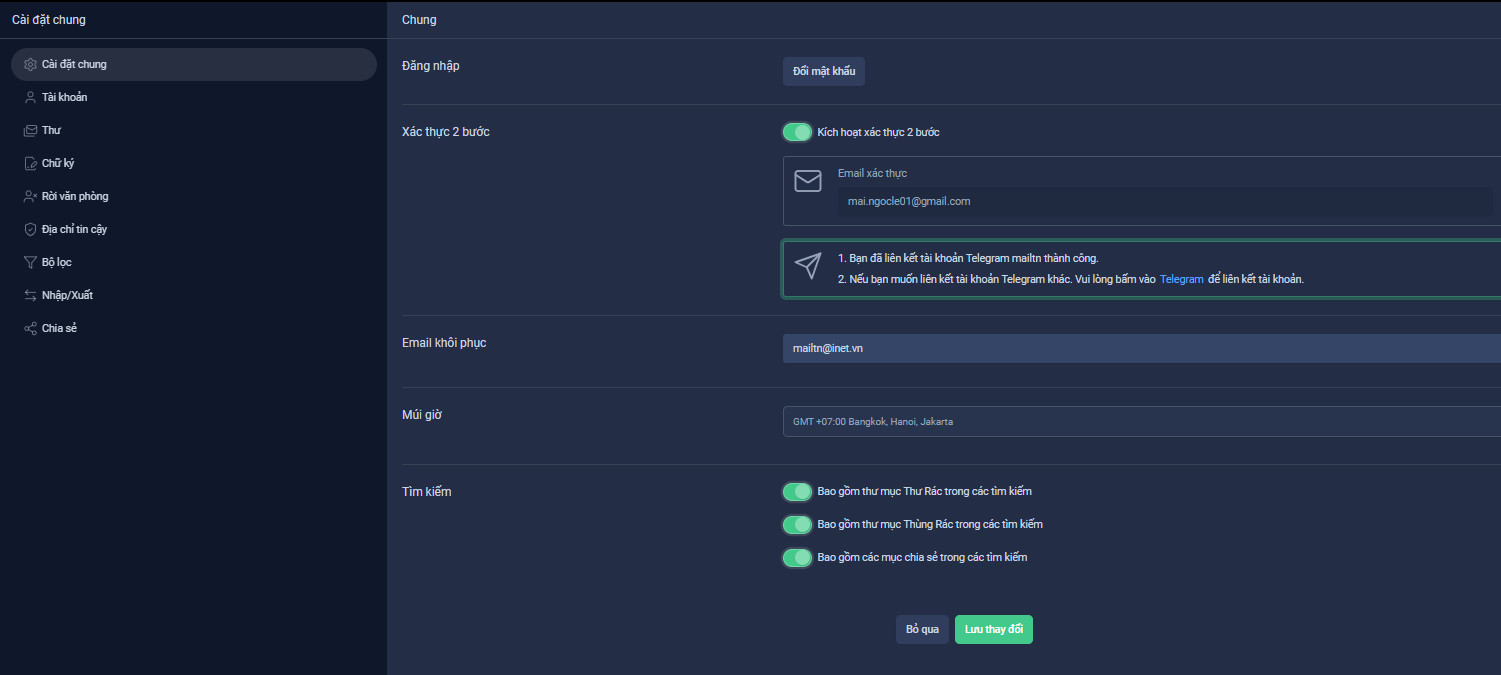
General Settings Interface
2. Account
***External Account Settings
Read and send mail from Yahoo, Outlook, and other email addresses using the OneMail application.
***Add Identity
Change your display name when sending emails.
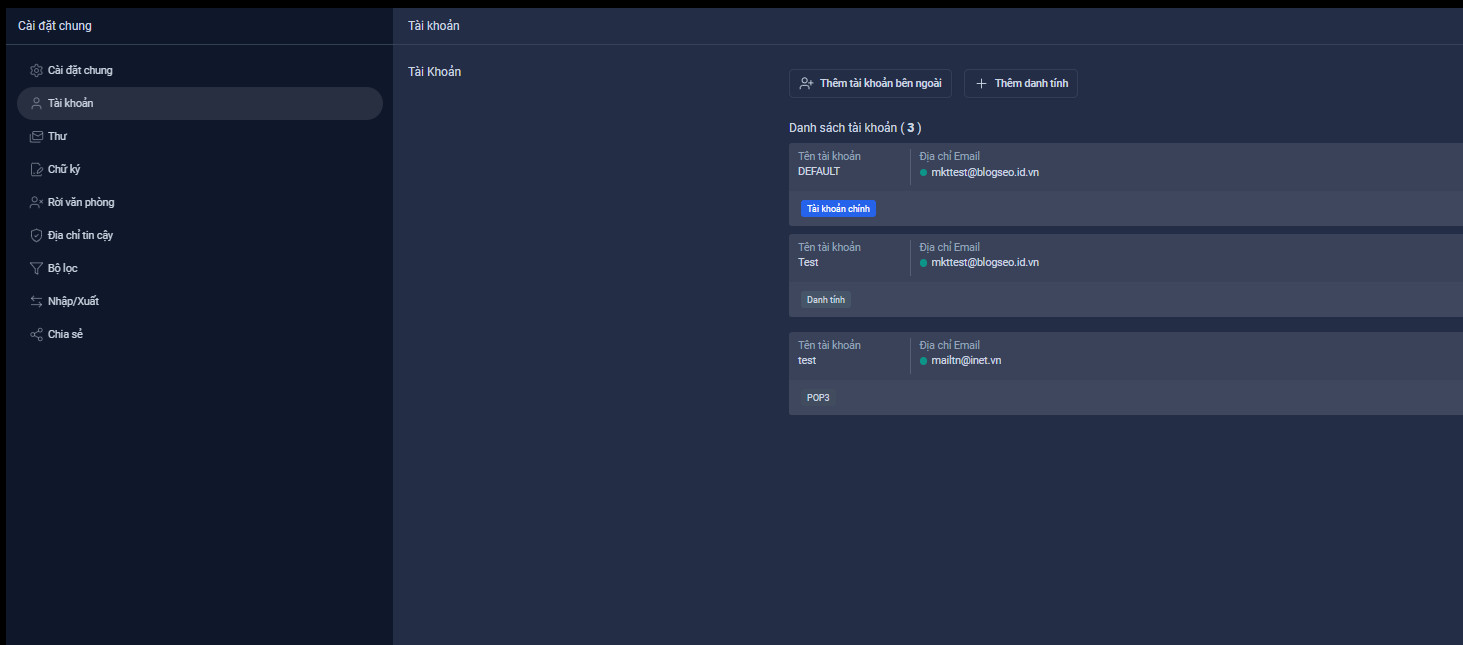
Account Interface
3. Mail
***Mail Display
Set the interval for checking for new mail.
***Send Later
Activate the "Send Later" feature and set the time to send emails (in seconds).
***Forward a Copy To
You can choose to forward all your new emails to another email address or only forward specific types of emails.
***Send a Notification To
You can set up a notification to be sent to another email address.
***Display Images
If you want images in HTML emails to be displayed automatically, check the box.
***Spam Options
Set to allow/block emails sent from specified email addresses or domains.
***Settings for Sent Mail from Primary Account
Set the display name for the recipient's email.
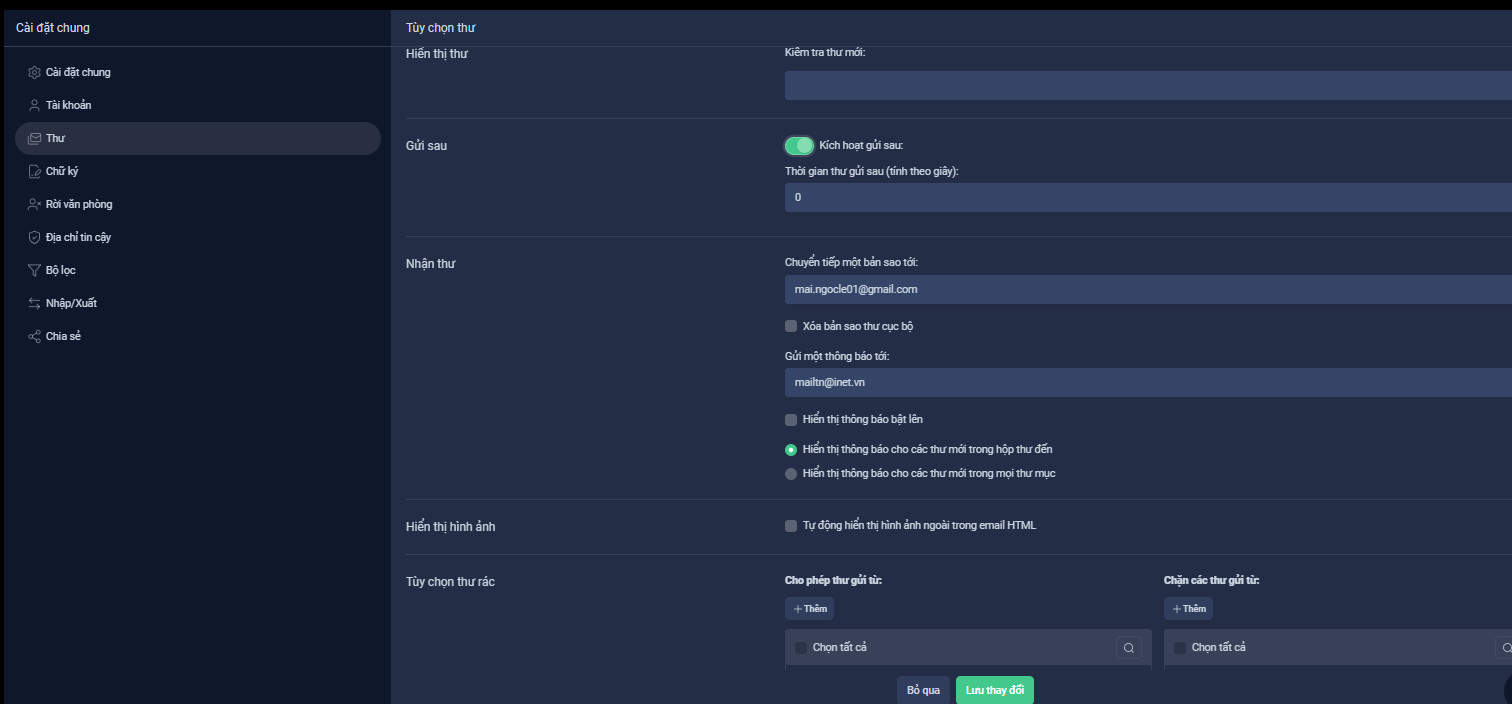
Mail Interface
4. Signature
Create a personal or business signature to enhance credibility and professionalism.
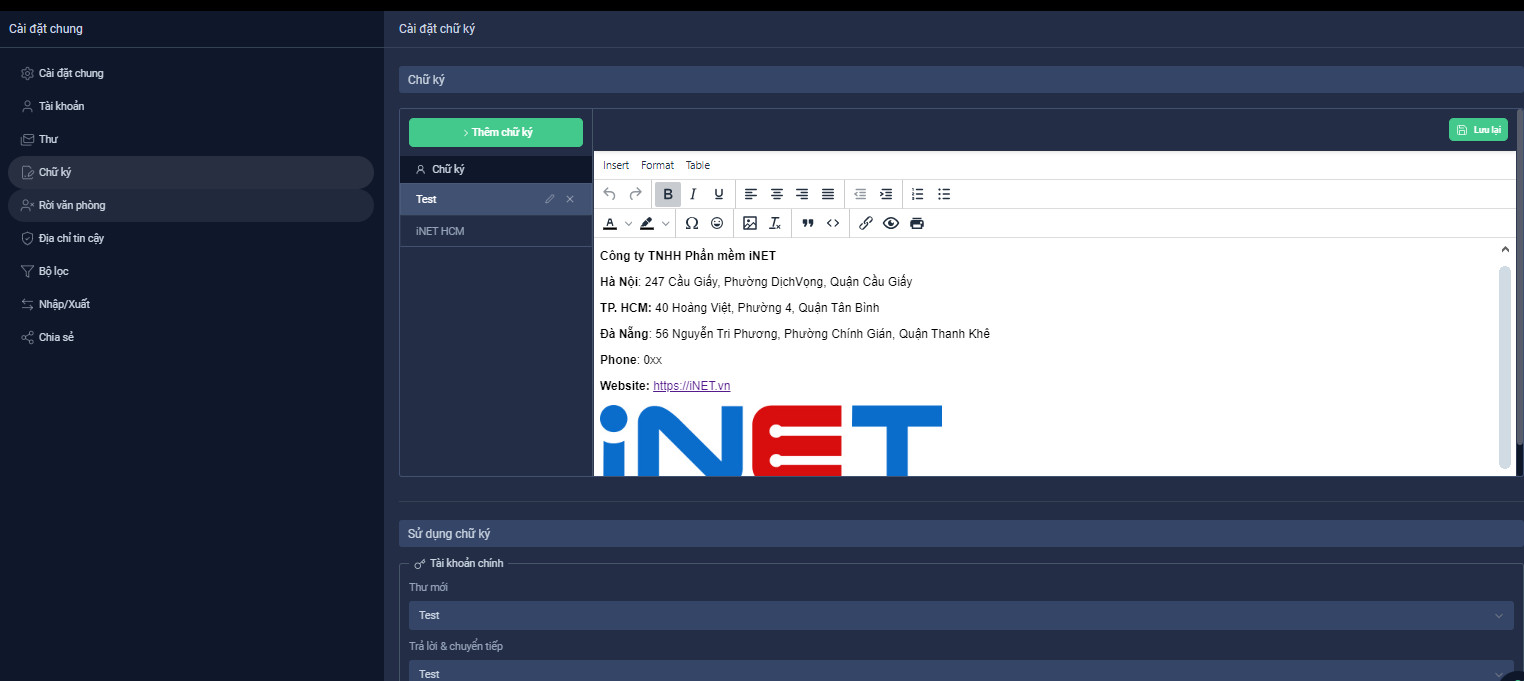
Signature Interface
5. Out of Office
When you are busy, such as on vacation or without internet access, you can set up an automatic reply to inform others that you will not be able to respond immediately. When people send you an email, they will receive an automatic reply containing the message you wrote.
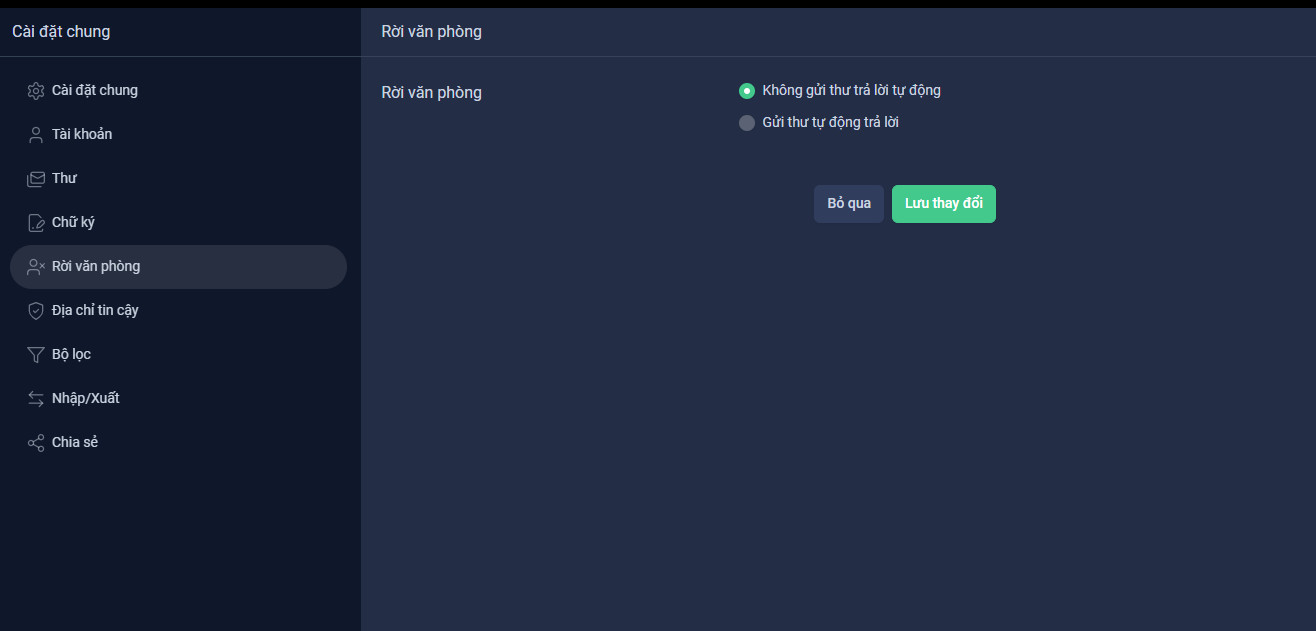
Out of Office Interface
6. Trusted Addresses
Emails sent from these addresses or domains will be considered trusted, and images will be automatically displayed.
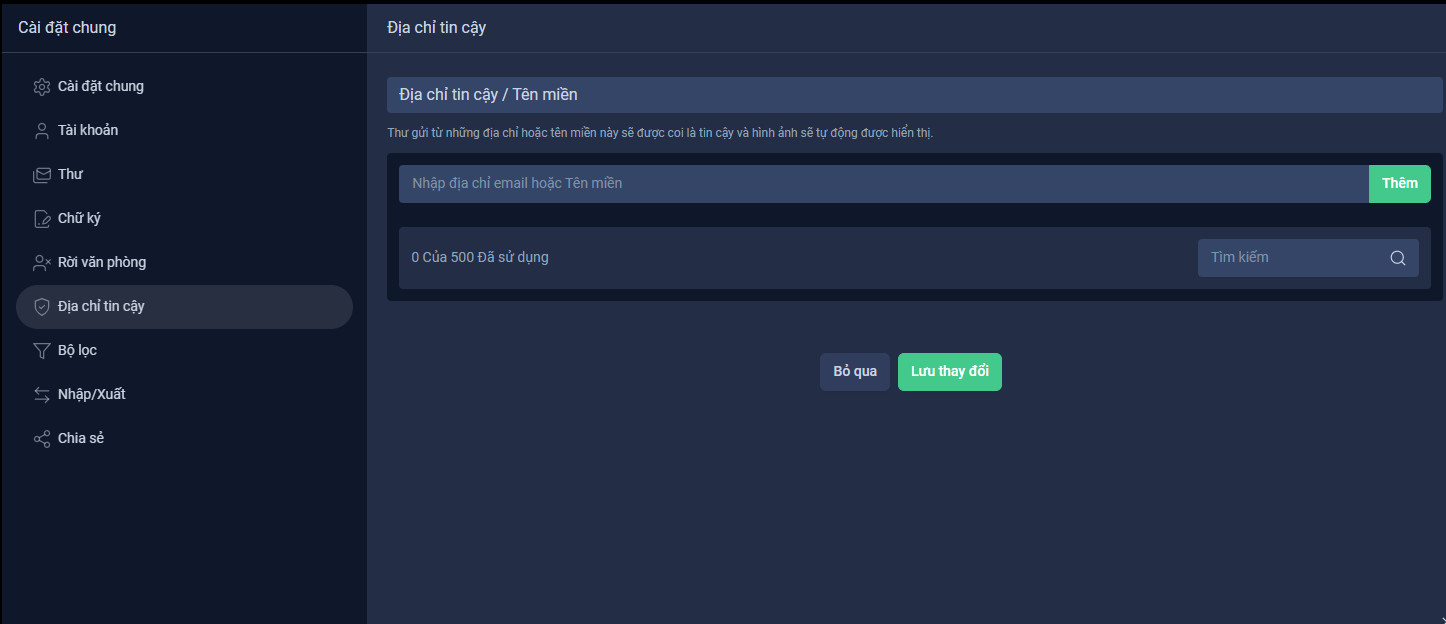
Trusted Addresses Interface
7. Filters
At OneMail, you can manage incoming mail by using filters to send emails to a specific label, archive them, delete them, star them, or automatically forward them.
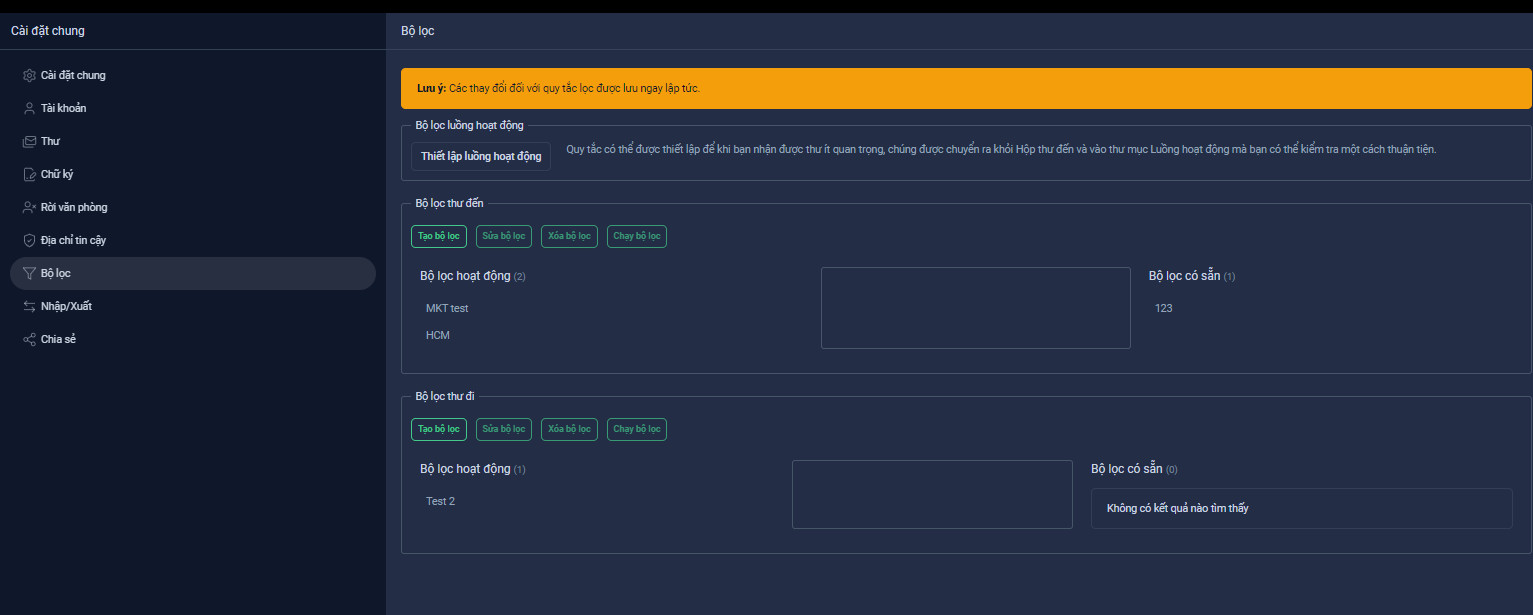
Filters Interface
8. Import / Export
All account data can be exported in a "Tar-GZipped" (.tgz) format, which can then be imported back into the system.
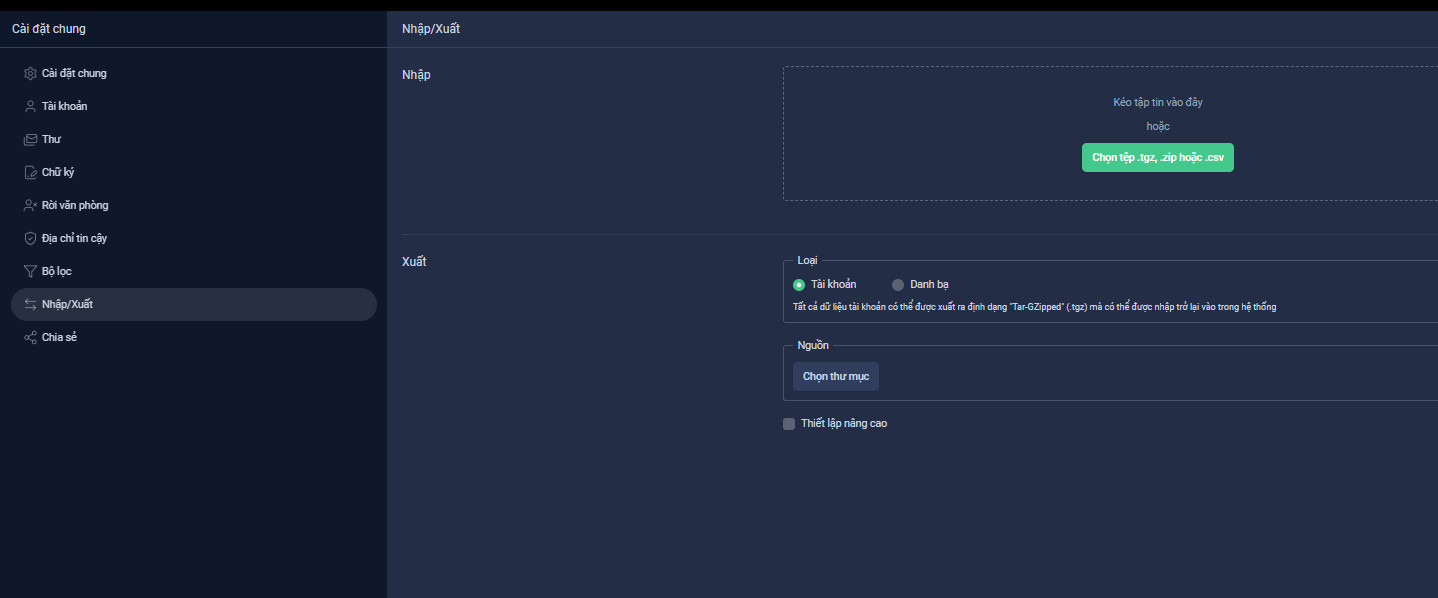
Import / Export Interface
9. Sharing
You can share files and folders with anyone. When sharing from OneMail, you can edit, revoke, and resend sharing requests for folders with other accounts.
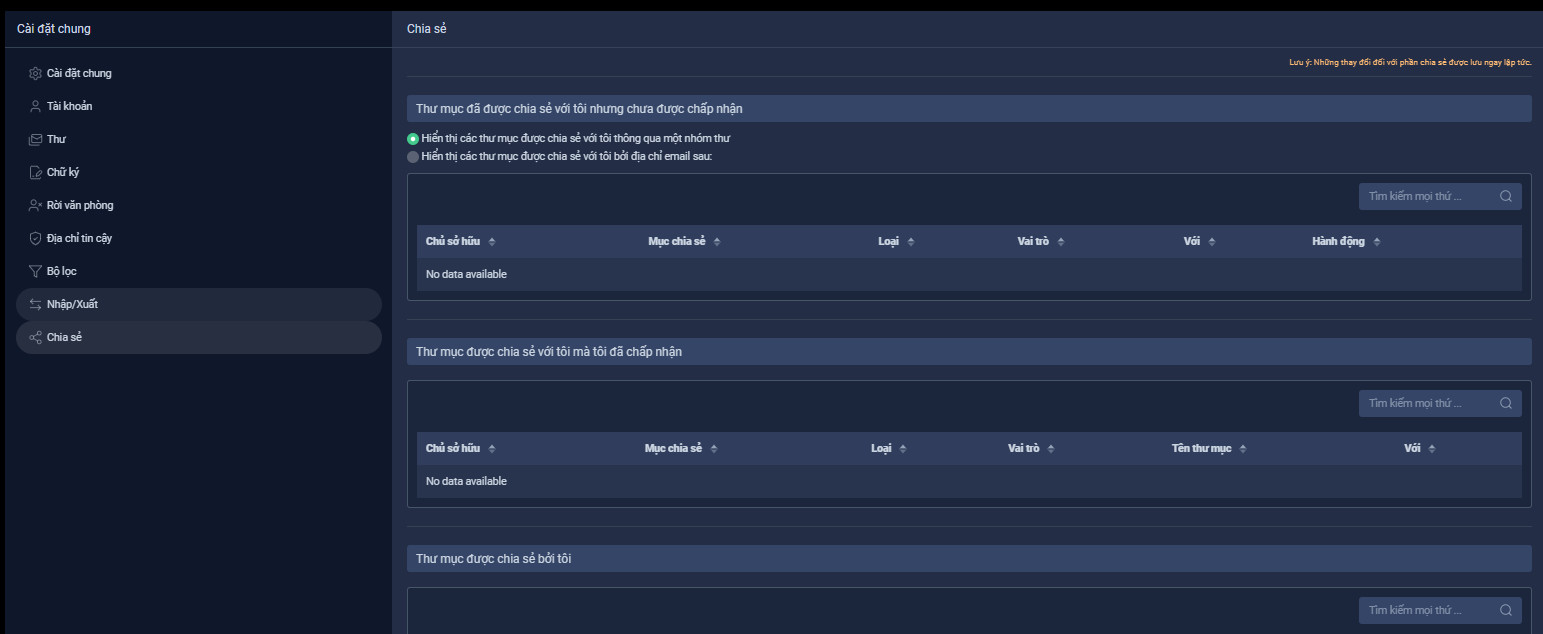
Sharing Interface
The settings features on OneMail help you customize your email experience the way you want it. Explore and adjust the settings to make your email usage easier and more efficient!