
 VN
VN 












Granting Google Analytics and Search Console Permissions Easily

Update now on how to grant Google Analytics and Google Search Console permissions for easy, secure access management and website management optimization.
Granting Google Analytics and Search Console Permissions Easily - An Easy Permission Granting Guide
When managing a website, tracking and analyzing data is crucial for understanding user behavior and optimizing marketing strategies. Google Analytics and Google Search Console are two powerful tools to help you do this. However, to manage accounts and protect information, granting permissions to team members is an essential step.
In this article, we will explore the steps to grant permissions in Google Analytics and Google Search Console, helping you easily manage the access rights of members within your organization without worrying about losing control.

Granting Permissions in Google Analytics
Accessing Google Analytics
First, you need to log in to your Google Analytics account. After successfully logging in, you will see the main Google Analytics dashboard. To grant permissions, you need to access the Admin section. The gear icon in the bottom left corner will lead you to the account management section.
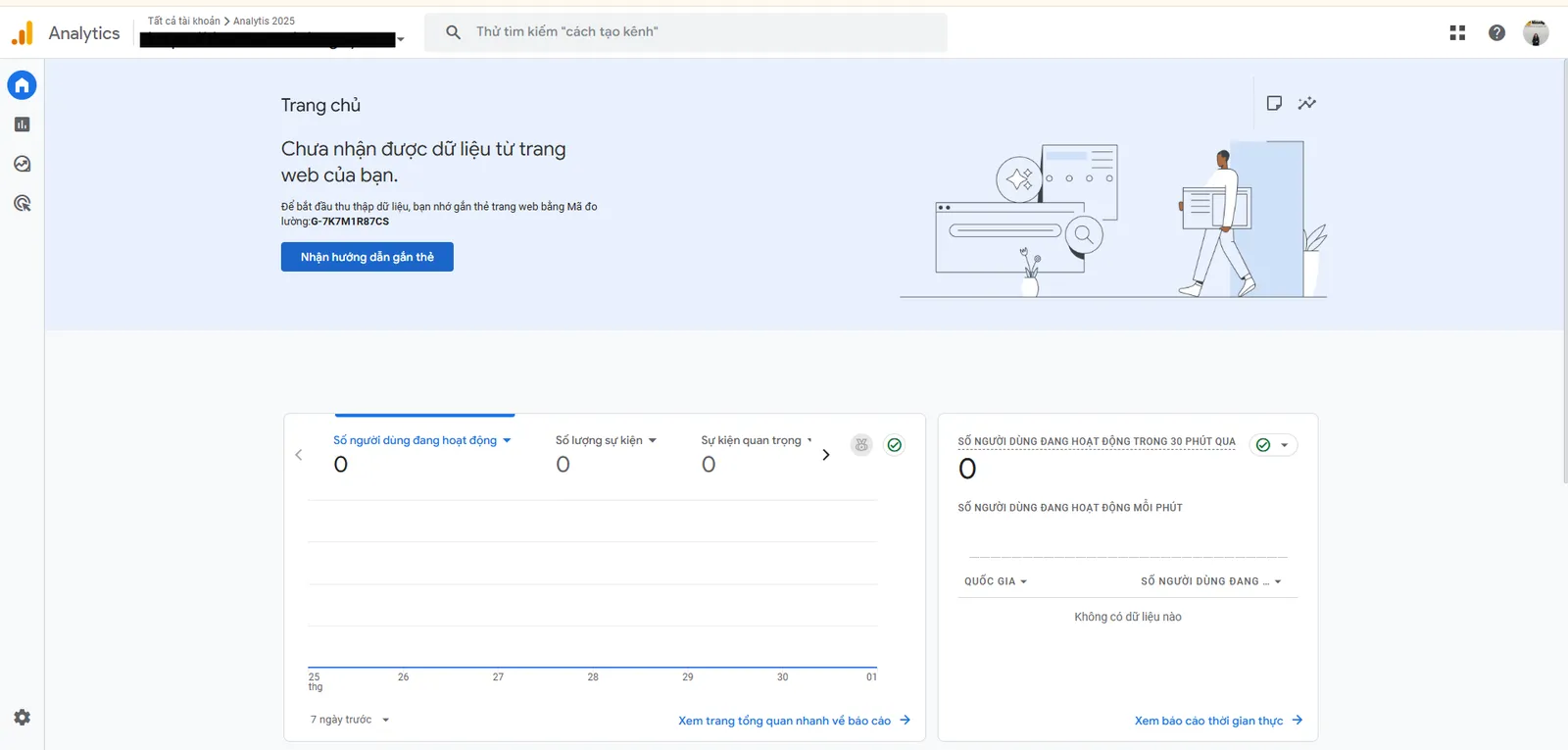
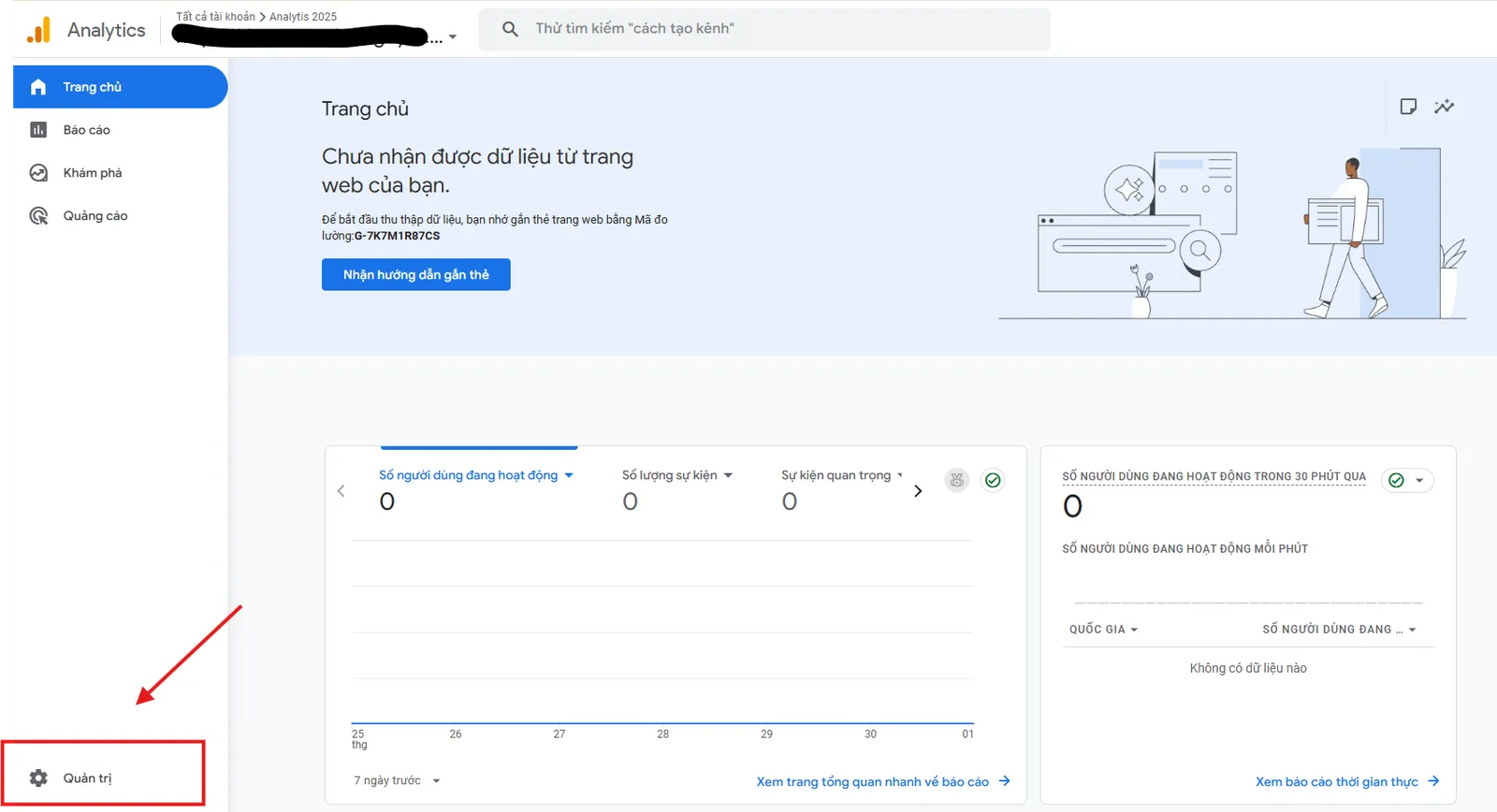
Choosing Permission Level
After entering the Admin section, you will see three columns: Account, Property, and View. Depending on your needs, you can grant permissions at these levels. Choose the level at which you want to add users, whether it's Account, Property, or View, depending on the level of detail you want to manage.
Next, select Account Access Management or Property Access Management. This is where you can manage all user access rights.
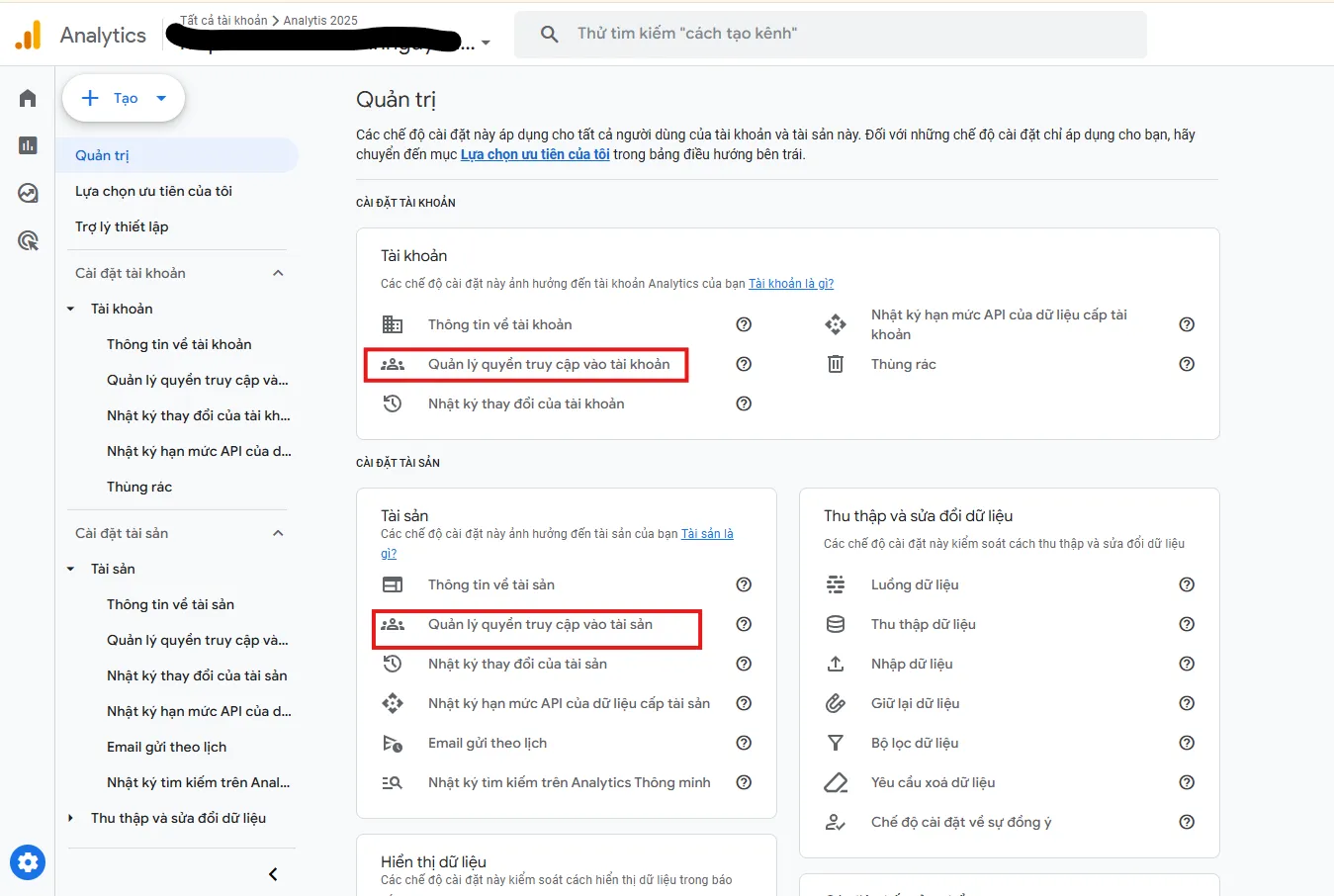
Adding a New User
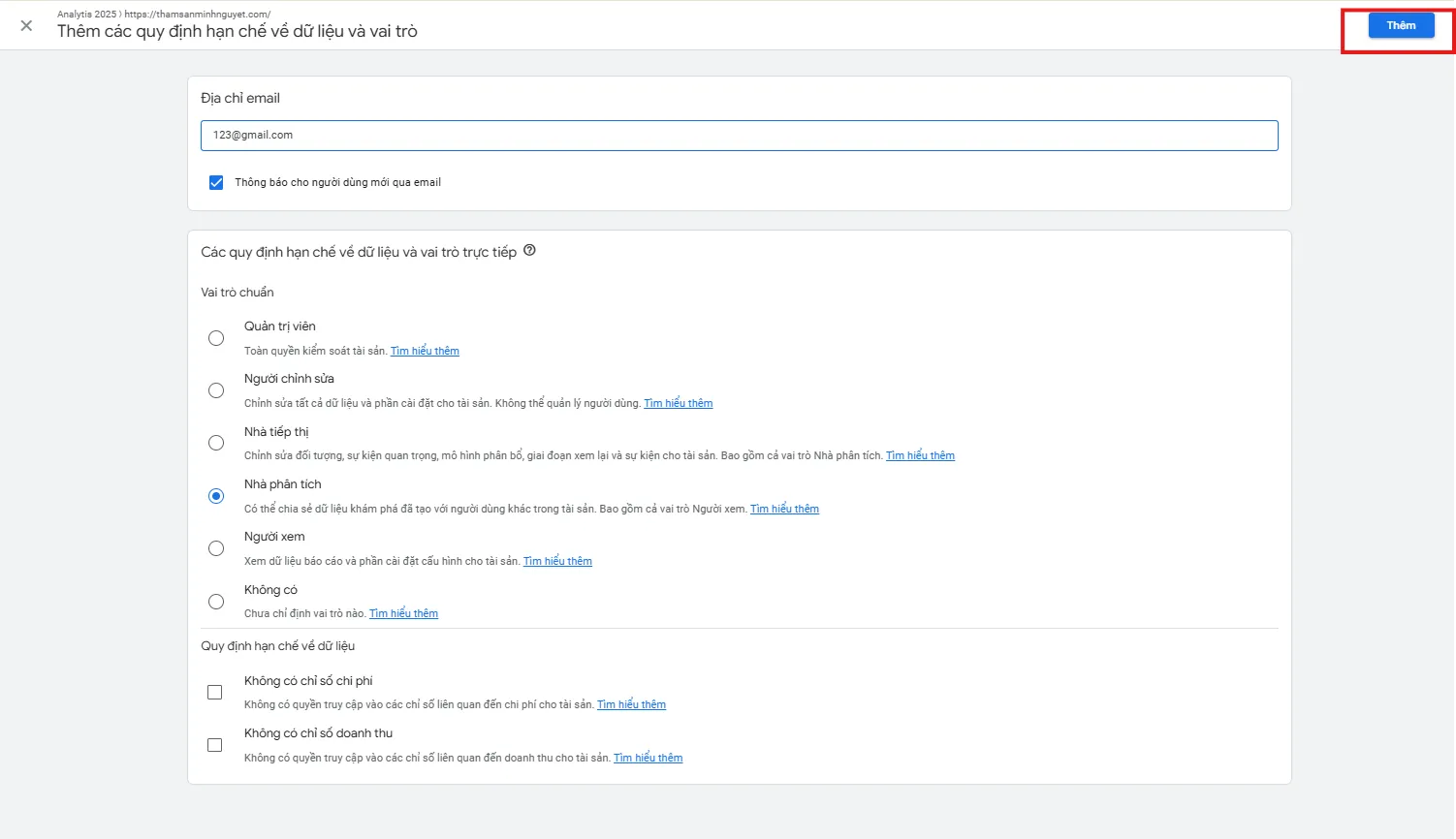
Once you are in the access management section, you will see a plus (+) button in the top right corner. Click this button to add a new user. You will be asked to enter the email address of the person you want to grant access to the Google Analytics account.

Choosing Access Permissions
After entering the email address, you will need to select the access permissions for the user. The access permissions include:
- Viewer: Can only view data and cannot edit.
- Editor: Has permission to edit reports and set up goals.
- Administrator: The highest permission level, allowing changes to all account settings.
- Analyst: Can create and edit reports but cannot change account settings.
Choose the appropriate access permission and click Add to complete the permission granting.
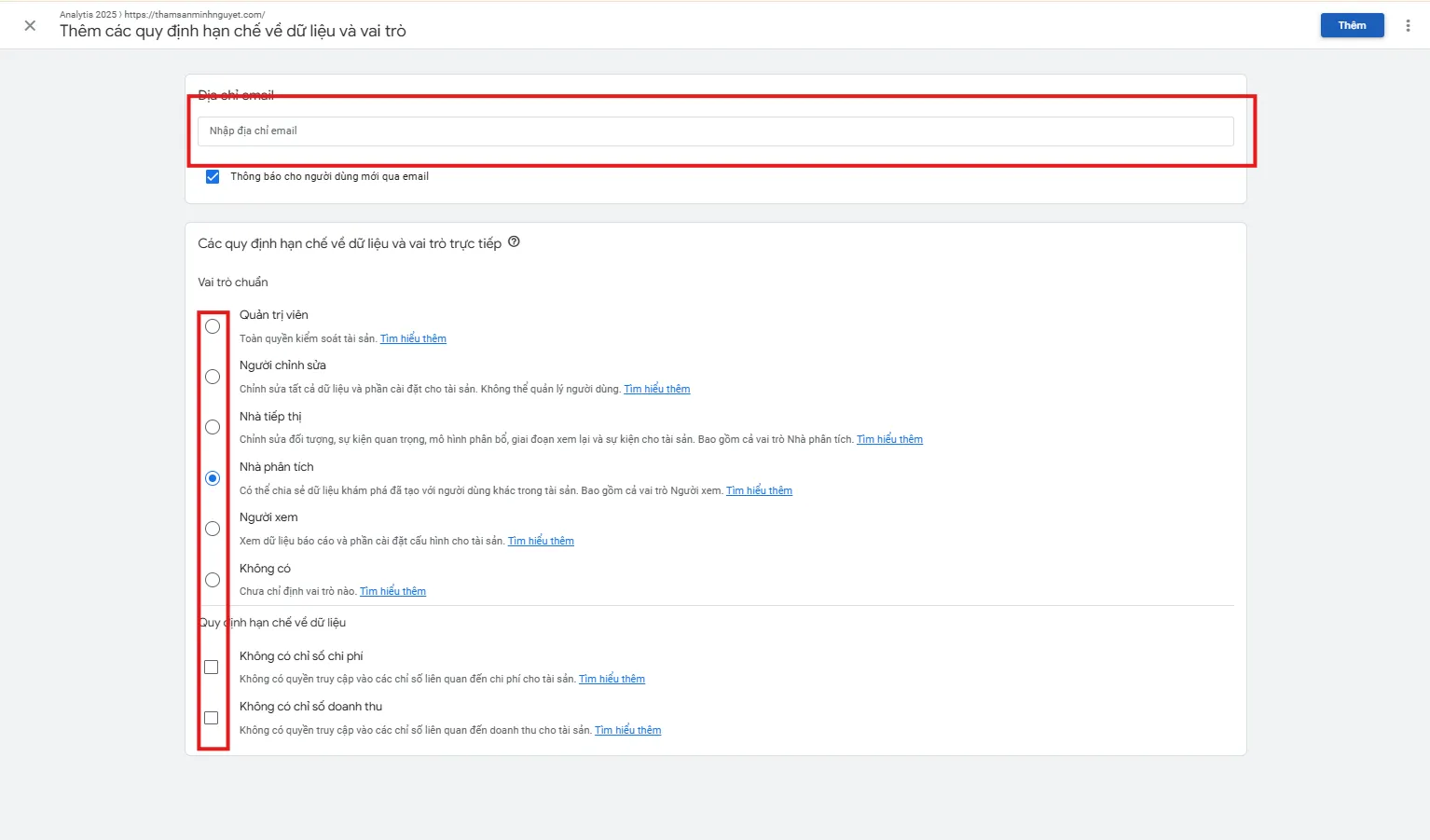
Saving Changes
After selecting the access permissions for the user, click Add to save the changes. The user will receive an email inviting them to access your Google Analytics account.
Granting Permissions in Google Search Console
Accessing Google Search Console
To grant permissions in Google Search Console, you first need to log in to the administrative account of Search Console. Access Google Search Console and log in with your Google account.
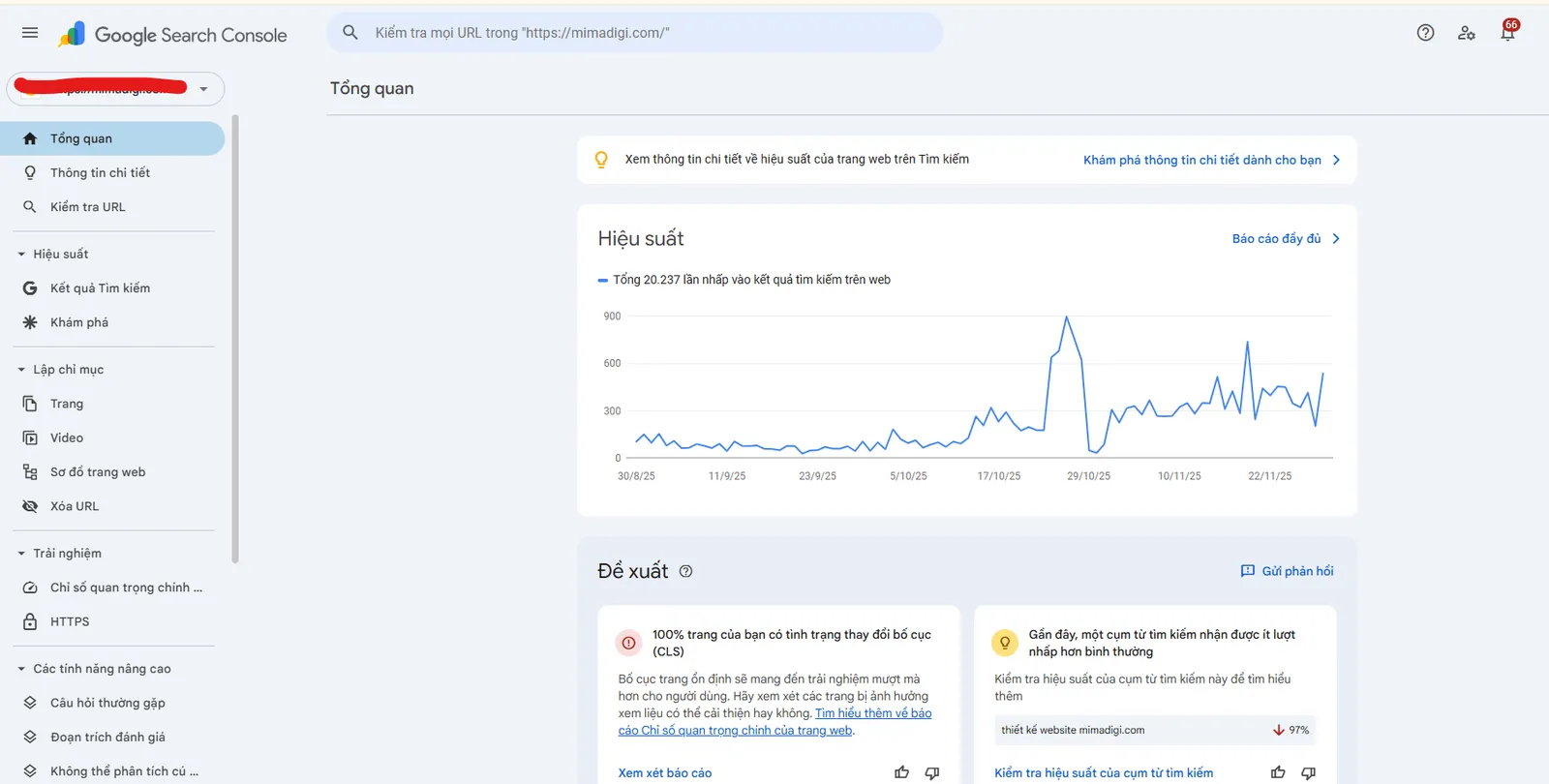
After successfully logging in, you will see a list of assets (websites) that you have added to the account. Select the asset (website) for which you want to grant permissions.
Going to "Users and Permissions"
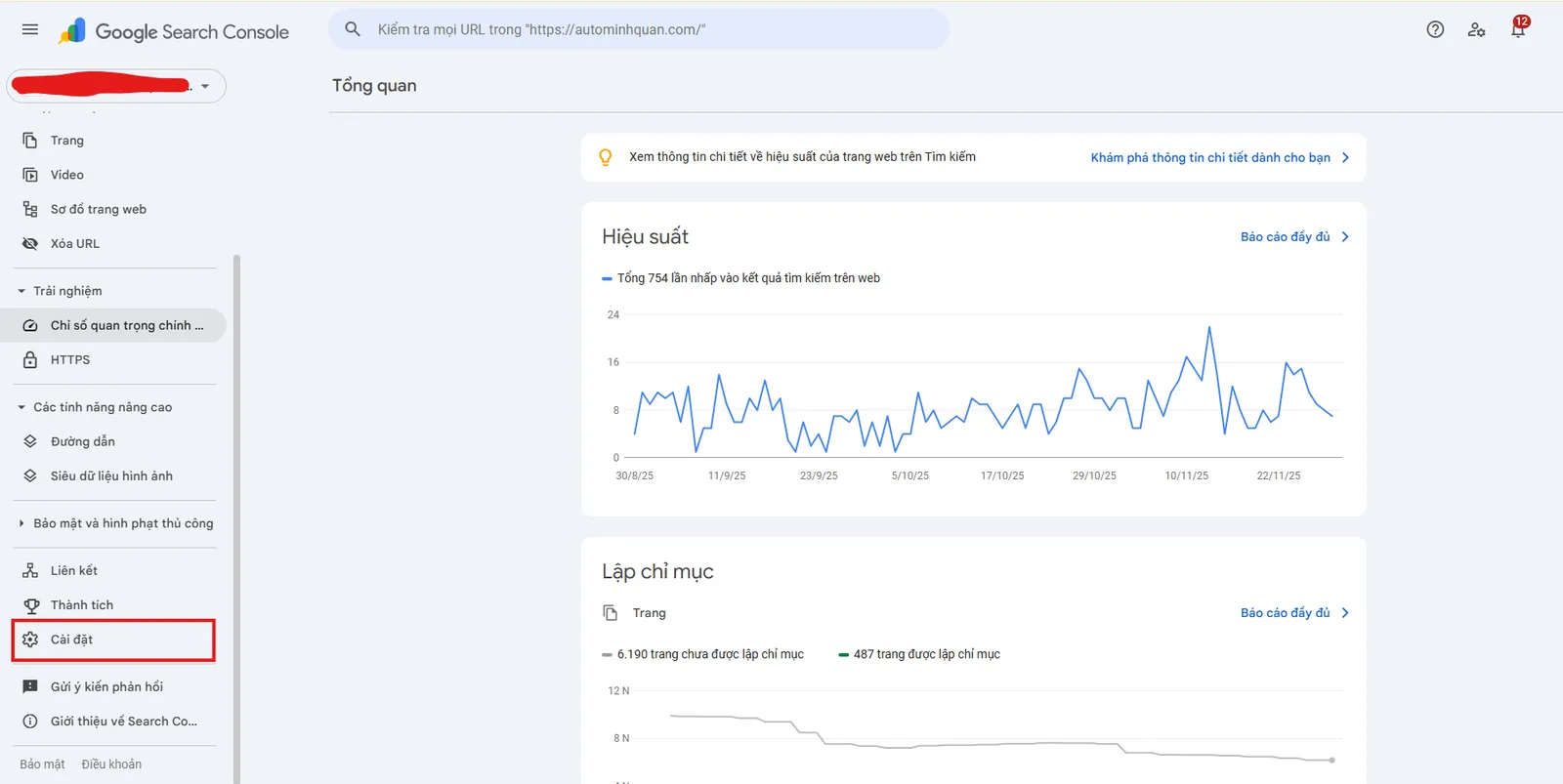
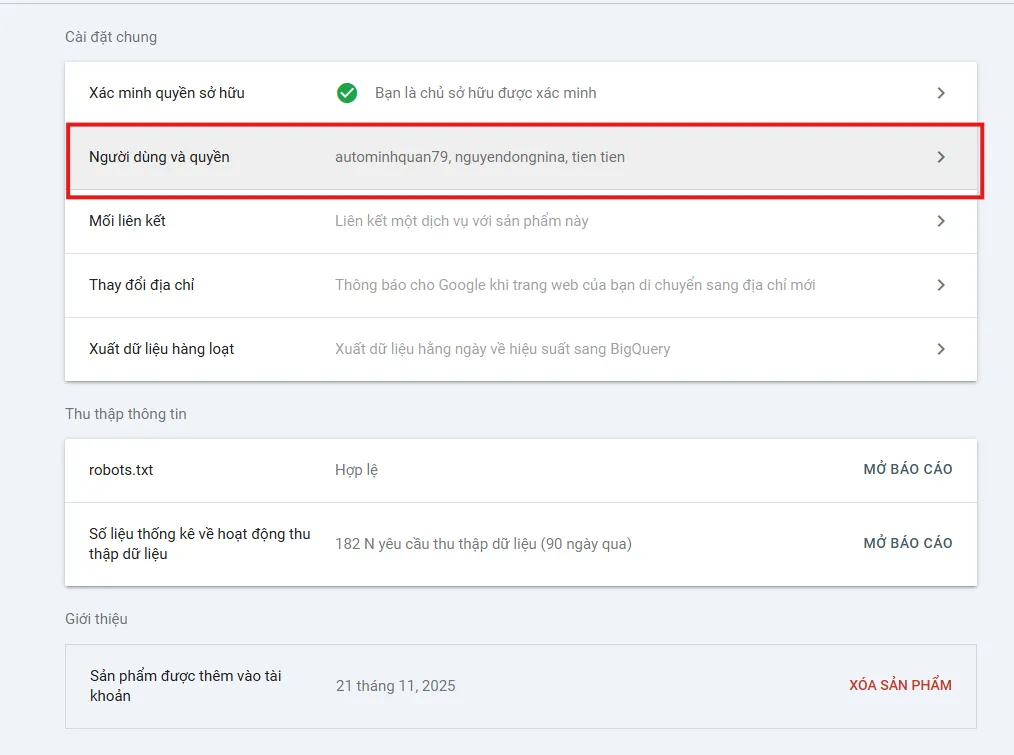
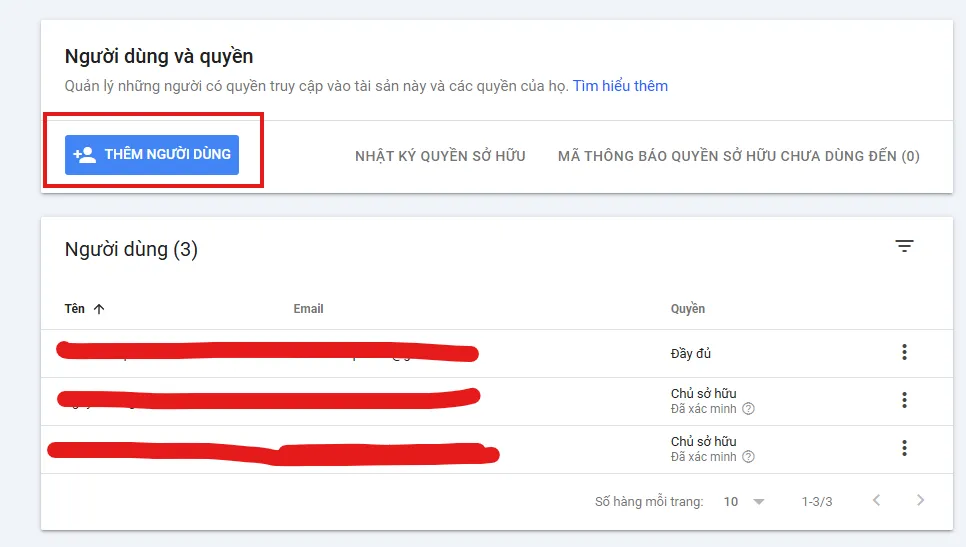
In the Google Search Console interface, in the bottom left corner, you will see a gear icon (Settings). Click on this icon and select Users and Permissions. This is where you can manage access rights for other people in your account.
Adding a User
To add a new user, click the Add User button in the top right corner. You will be asked to enter the email address of the person you want to grant permissions to.
Choosing Permission Level
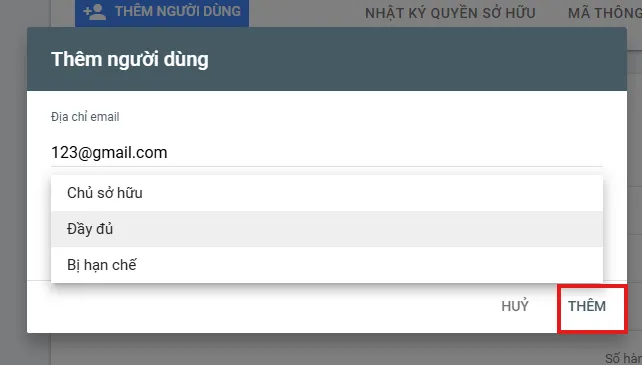
After entering the email address, you will need to select the permission level for the user. The available permissions include:
- Full User: The user has the right to view and manage all data in the property, including reports and search data.
- Owner: The account owner has full rights, including the right to change the configuration and grant permissions to others.
- Restricted User: The user only has the right to view information and cannot edit it.
Choose the appropriate permission level and click Add to complete the permission granting.
Saving Changes
After adding the user and selecting the access rights, click Add to confirm and save the changes. The user will receive a notification and can access your Google Search Console account according to the granted permissions.
Important Notes When Granting Permissions
- Ownership Required: For Google Search Console, you need to have ownership of the property to be able to add new users and change their permissions. If you are not the owner of the account, you will not be able to grant permissions to others.
- Connect Google Search Console With Google Analytics: To connect Google Search Console with Google Analytics and maximize the data from both tools, you need to verify ownership in Google Search Console with an account that has edit permissions in Google Analytics. This helps you synchronize data and view SEO metrics from Google Search Console directly in Google Analytics.
- Refresh Browser: If the user does not see the changes after granting permissions, ask them to refresh the page in their browser to update the access right changes.
Granting permissions in Google Analytics and Google Search Console is an important step to help you secure data and optimize teamwork. By granting the right permissions, you can effectively manage access to these accounts and protect important information.
If you have difficulty granting permissions or need support for SEO and data analysis, do not hesitate to contact MIMADIGI. We provide professional search engine optimization and consulting services to help you develop your website effectively.
MIMADIGI contact information:
- Address: 31/3B Ấp Thới Tứ 1, Xã Đông Thạnh, TP Hồ Chí Minh, Việt Nam
- Phone number: 0909 035 333
- Email: info@mimadigi.com
- Website: https://mimadigi.com/
We wish you success in managing and granting Google Analytics & Google Search Console permissions!